Tuesday, March 17, 2020

Base Wood Fired Pizza Ireland app for iOS: iOS Share sheet - can't see some menu options

iOS 13.3.1
Base Wood Fired Pizza Ireland app for iOS (version 1.1.12617)
Date: 03/17/20

Description:

Minor problem with the Base Wood Fired Pizza Ireland app for iOS and the share sheet that appears from sharing a link to the download option for the app.

This is the share option I mean. After selecting this option, the share sheet will pop-up...

From the iOS share sheet, select either "Messages" or "Mail" or "Messenger"...

Can't see the "Cancel" option...

Can't see the "Cancel" option...

Can't see the options in Facebook Messenger...


Can't see these options either.


Steps to Reproduce:

1. Download and launch the Base Wood Fired Pizza Ireland app for iOS 
2. Select the menu option in the upper right
3. Select "Share"
4. From the iOS share sheet, select either "Messages" or "Mail" or "Messenger"
5. Note that menu items on all three are not visible (with iOS set to either light mode or dark mode)

Result: Can't see some menu options in the iOS share sheet when the user shares a link to the app ("Messages" and "Mail" and "Messenger" all have missing UI options)

Expected: You should always be able to see all options in the iOS share sheet, regardless if the device is set to light or dark mode

Monday, March 16, 2020

Amazon Music for Artists app for iOS: Instagram icon does not lead to Instagram login

iOS 13.3.1
Amazon Music for Artists app for iOS
Date: 03/16/20

Description:

Minor bug with the newly released Amazon Music for Artists app for iOS.

Inside of the app, there is a "Verify Relationship" page for artists. There are social media icons for Facebook, Instagram and Twitter.

The Instagram icon does not take the user to an Instagram log in. It instead takes the user to a Facebook login. I believe that this is incorrect, and the user should be taken to their Instagram login.

Steps to Reproduce:

1. Download and launch the Amazon Music for Artists app for iOS
2. Sign in with your Amazon account
3. Search for an artist
4. From an the detail page for an artist, click on "Take Me There"
5. From underneath the "Artist Social Accounts" area, click on the Instagram icon
6. Note that the user is taken to a Facebook login - not an Instagram page

Result: The Instagram icon on the "Verify Relationship" page does not take to the user to an Instagram login

Expected: The Instagram icon, located under the "Artist Social Accounts" area on the "Verify Relationship" page should take the user to an Instagram login

This is easier to show than to describe, so please see the attached screenshots:

Search for any artist listed...

Select any artist - such as the Crash Test Dummies...

Select the "Take Me There" option...

Select the "Instagram" option...

Not taken to an Instagram login - instead the user is taken to a Facebook login.


Saturday, March 14, 2020

Christian County Sheriff's Department app for iOS: Easy to reproduce crash

iOS 13.3.1
Christian County Sheriff's Department app for iOS (version 1.0 (4) 2.2.1)
Date: 03/14/20

Description:

There is a crash with the Christian County Sheriff's Department app developed by @TheSheriffApp.

Here is an image of the crash dump:

This crash happens when the user selects


Steps to Reproduce:

1. Download and launch the Christian County Sheriff's Department app for iOS
2. Select the "Recent Arrests" option
3. Select any Recent Arrest
4. Select the share option from any individual's recent arrest detail page
5. From the share sheet UI, select the "Email" option

Result: Trying to email any recent arrest using the "Email" option from the share sheet UI crashes the Christian County Sheriff's Department app

Expected: The Christian County Sheriff's Department app shouldn't crash if the user tries to email out a recent arrest

This is easier to show than to describe, so please take a look at the following screenshots:

Select the "Recent Arrests" option...

Select any Recent Arrest...

Select the share option...

Select the email option, and the app will crash.

Sam's Club app for iOS: Share sheet - Several UI options are not visible

iOS 13.3.1
Sam's Club app for iOS (version 20.2.0)
Date: 03/14/20

Description:

Minor problem with the current version (20.2.0) of the Sam's Club app that is available for iOS. Several options in the share sheet are not visible. They are essentially "white-on-white" which means that the end user can't see things like "cancel" options.

This is extra obvious with the Sam's Club app since the app doesn't support dark mode - meaning the user will always see this.

Steps to Reproduce:

1. Download and launch the Sam's Club app for iOS
2. Select any product listed in the app
3. Select the share option from any product's detail page
4. From the iOS share sheet option, select either "Mail" or "Messenger"
5. Note that "Cancel" (from the email message) and "Done" (from the Facebook Messenger pop-up) are not visible

Result: The "Cancel" and "Done" options from Emails and Facebook Messenger dialog boxes accessible via the share sheet are not visible with the Sam's Club app for iOS

Expected: The "Cancel" and "Done" options from Emails and Facebook Messenger dialog boxes accessible via the share sheet should ALWAYS be visible with the Sam's Club app for iOS


This is easier to show than to describe, so please take a look at the following screenshots:

Select any product listed in the app...

Select the share option...

Select either "Email" or "Messenger"...

Can't see the "Cancel" option from a generated email...


Friday, March 13, 2020

Neighbor app for iOS: Share sheet - Light Mode - Several menu options not visible

iOS 13.3.1
Neighbor rental app for iOS (version 2.4.8)
Date: 03/13/20

Description:

Minor problem with the Neighbor app for iOS when the device is set to light mode. When the iOS device is set to light mode, a number of menu options in the share sheet are not visible.

This is a common problem with numerous apps.

Steps to Reproduce:

1. With the iOS device set to light mode, download and launch the Neighbor app for iOS
2. Head to any listing
3. Select the share option
4. Select either "Messages" or "Mail" or "Messenger"
5. Note that "Cancel" and "Done" options are not visible

Result: With the iOS device set to light mode, note that several options in the share sheet UI are not visible

Expected: With the iOS device set to light mode, all UI options in the share sheet should be visible

Here's from "Messages" - can't see the "Cancel" option...

This is an auto-generated email message - can't see the "Cancel" option.

This is from the Facebook Messenger option - can't see the "Done" option.

Thursday, March 12, 2020

Badi app for iOS: Share Sheet - Facebook Messenger sharing - no link is generated from FB Messenger sharing of a listing

iOS 13.3.1
Badi app for iOS (version 5.49.0)
Date: 03/12/20

Description:

Minor bug with the Badi app for iOS. If the user shares a listing using the Facebook Messenger option accessible via the iOS share sheet, there is no active link created.

Please take a look at the following screenshot:

No link back to the app - as you can see in this message that was sent via Facebook Messenger.


Steps to Reproduce:

1. Download and launch the Badi app for iOS (version 5.49.0)
2. Sign in with an account
3. Select any listing in the app
4. Select the share option
5. From the share sheet, select the Facebook Messenger option
6. Send the listing to anyone using Facebook Messenger
7. Note the lack of a working link

Result: There is no active link to listings generated when the user shares a listing in the app using Facebook Messenger - as accessed via the share sheet

Expected: There should always be an active link when someone shares a Badi listing using Facebook Messenger

Launch the Badi app, and sign with an account...

Choose a city...

Choose any listing in the app...

Select the Facebook Messenger option from the share sheet...

Note that there does not appear to be any link generated for the listing...

No link is sent.

Bruegger's Bagels app for iOS: Google sign up message labels app as: Bru_PROD_Env

iOS 13.3.1
Bruegger's Bagels app for iOS (3.13.1)
Date: 03/12/20

Description:

Minor problem with the Bruegger's Bagels app for iOS. This small issue is kind of a pet peeve of mine.

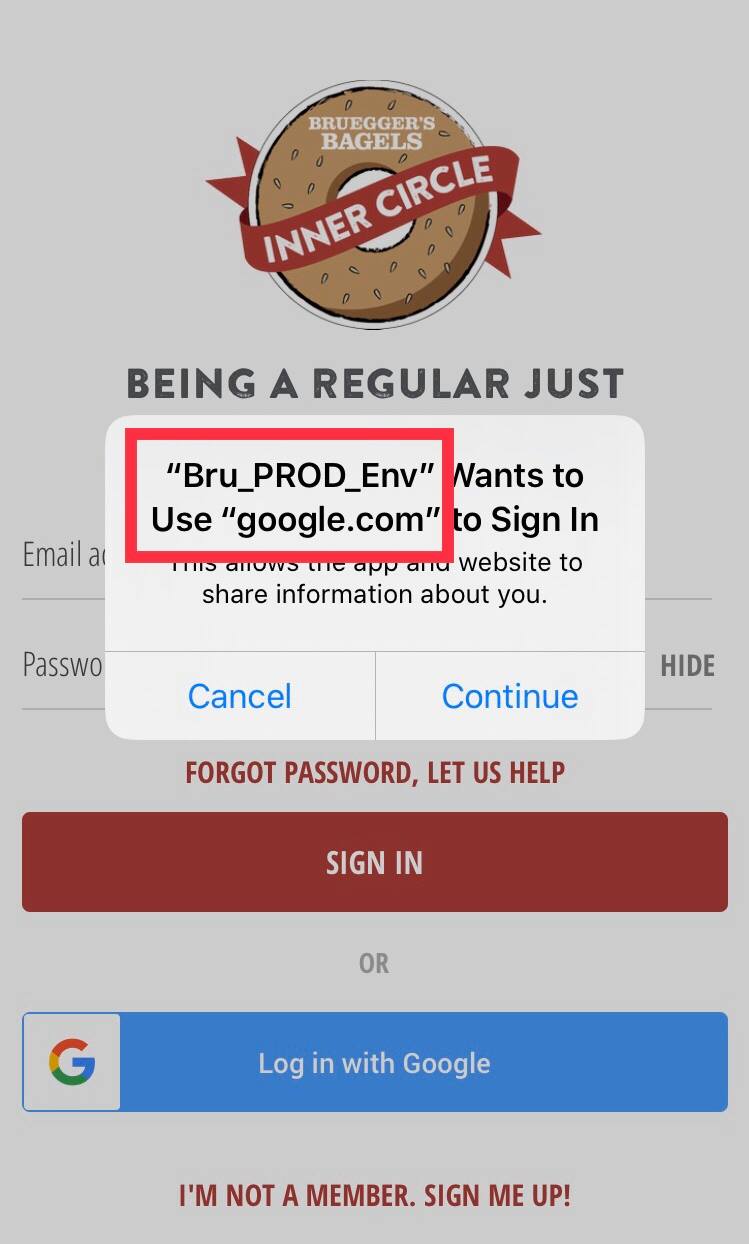
Like many apps the Bruegger's Bagels app has a "Sign up with Google" option to use Google account credentials to create a new account. After selecting this option, the app present a permission dialog to the user.

On this error message, the app is described as "Bru_PROD_Env" - as in "Bruegger's Production Environment." This is not a very user informative error message.

Take a look at the follow screenshot:


Steps to Reproduce:

1. Download and launch the Bruegger's Bagels app for iOS
2. Select the "Sign Up - Earn Rewards!" option in the upper right
3. Select "Sign up with Google"
4. Note the permission message states: "Bru_PROD_Env" Wants to use "google.com" to sign in"

Result: With the Bruegger's Bagels app for iOS, the Google sign-in message describes the app as "Bru_PROD_Env"

Expected: The Bruegger's Bagels app for iOS should change "Bru_PROD_Env" on the Google Sign-in message