Showing posts with label camera access. Show all posts

Thursday, September 17, 2020

iOS 14: Springboard - Phone Locked - Camera Wont Activate if Selected Via Icon on Springboard

 iOS 14

Camera activation via Springboard UI with phone locked 

Date: 09/17/20


Description:

I believe that this is a brand new problem with iOS 14. I am not getting this to reproduce on older iOS versions such as 12.3.1. on an iPad Mini, but I haven't checked it against the previous 13.7.

You can access the camera if the device is locked using the camera icon from Springboard. The camera turns on (green light activates, and blurry image of camera is in background) but the UI of Springboard is overlaid on top of it.

Other apps, like the Calendar option, allow user access via Springboard without difficultly. 

I believe that this is a new problem - the current behavior doesn't make much sense as it drains the battery. The user is able to take photos with the Springboard UI overlaid on the screen.

This is much easier to show than to describe, so please see the attached screenshots. 


Steps to Reproduce:

1. Update iOS device to iOS 14

2. Lock phone

3. Swipe left for Springboard

4. Select the search box

5. From "Siri Suggestions" select the Camera option (Camera activates with UI on screen)

6. Select "Cancel" option next to search box

Result: The camera is not automatically accessible when selected via icon from the Springboard UI while the phone is locked. The camera activates in the background, with UI overlaid onscreen 

Expected: Not this. Should it enter the user into the camera - in the same way that the camera is accessible if the user swipes right from the locked home screen?

The iOS device is locked. Swipe over to activate the SpringBoard UI...


Select inside the search box at the top of the SpringBoard UI...


The camera has now activated in the background with the SpringBoard still present on screen. User can take photos using the volume controls on the phone...


Hard to see green (yellow? white?) dot in upper right is the only indication that the camera is currently active. 

Tuesday, August 11, 2020

The North Face app for iOS: App crashes if the user declines camera access from prompt

iOS 13.6
The North Face app for iOS (version 7.5.1)
Date: 08/11/20

Description:

Here's an example of a fairly common crash that happens with multiple iOS apps. This particular crash occurs with the current version of the The North Face app that is available to download from the Apple App Store.


Here's a video of the crash:
The app will crash if the user declines camera roll access. Here's the crash dump:


This is a common crash that will often see with iOS app. 

Steps to Reproduce:

1. Download and launch The North Face app for iOS
2.  Select "JOIN NOW"
3. From the "Become a VIPeak member"  screen, select the scanner option in the upper right
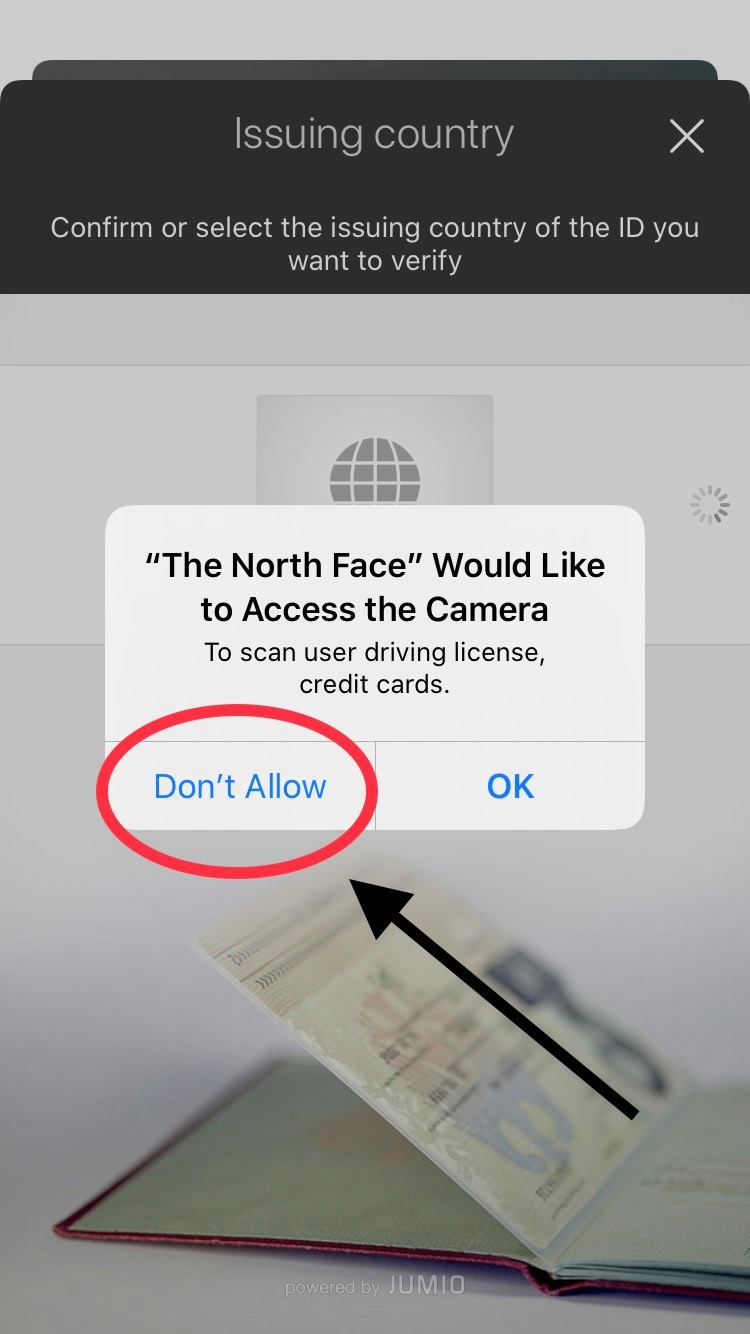
4. From the "Issuing Country" screen, select "Don't Allow"from the camera prompt pop-up

Result: Declining camera access to The North Face app for iOS results in the app crashing 

Expected: Declining camera access to The North Face app for iOS should not crash the app

Download and launch The North Face app for iOS...

Select the "JOIN NOW" option...

Select the scanner option in the upper right...

If the user selects the "Don't Allow" option, the app will crash. 

Thursday, May 7, 2020

Mike's Party Store app for iOS: Crashes the first time the user disallows camera access

iOS 13.4.1
Mike's Party Store app for iOS (version 0.0.120)
Date: 05/07/20

Description:

Looking for one of the easiest ways to find a crash with an iOS app?

Well, here you go:


This was from an app for a place called Mike's Party Store in Michigan. It was developed by a company called City Hive Inc., which develops many apps for locations that sell beer and wine. I am guessing that the same crash happens with other apps that they develop.

Truth be told, it's not that serious of an issue, as it only happens once, and how many people access the function only to deny access? Still, if you're looking for a crash with an iOS app, this is one of the most common. Has been for years!

Steps to Reproduce:

1. Download the Mike's Party Store app for iOS (version 0.0.120)
2. Select "Yes" to the over 21 prompt
3. Dismiss the notifications prompt
4. Select the slide bar/slider in the upper left hand corner of the screen
4. Select "Scan"
5. Select "OK" from the barcode prompt
6. From the "Mike's Party Store" prompt select "Don't Allow"
7. Tap the camera option in the bottom right hand corner of the screen

Result: The Mike's Party Shop app for iOS will crash, the first time the user selects "Don't Allow" from the camera permission prompt and then presses the camera icon on screen

Expected: Mike's Party Shop app shouldn't crash after the user disallows camera access

Here's the crash dump:


Monday, April 13, 2020

Scrubz app for iOS: Easy way to crash the app after declining access to the camera and selecting the VIDEO option

iOS 13.4.1
Scrubz app for iOS (version 1.8)
Date: 04/12/20

Description:

Here's an easy to reproduce crash with an app called Scrubz for iOS.

Here's a video of the problem:


 This is a crash that i've seen more than once over the years. If you decline access to the camera, the camera UI still pops up. Some apps (certainly not the majority) do this.

However, if the app still displays a video option at this point, select the video option crashes the app.

After declining camera access to the app, and then navigating to this screen, the app will always crash after the user taps the "VIDEO" option.

Here's part of the crash dump...


Steps to Reproduce:

1. Download and launch the Scrubz app
2. Select create account
3. Tap the profile picture option
4. Select camera - decline camera access
5. From the black camera screen, tap on "VIDEO"

Result: The app will crash if the user denies camera access, then opens up the camera UI and selects "VIDEO"

Expected: The app shouldn't crash

Saturday, April 4, 2020

ShopRite app for iOS: Declining camera access freezes the app

iOS 13.4
ShopRite app for iOS (version 4.4.0)
Date: 04/04/20

Description:

Here's a minor bug with an app for the ShopRite chain of supermarkets. If the user declines camera access, the app becomes unresponsive, with none of the UI working.

This is a first for me, as I always play around with declining camera access. This is the first time i've seen an app become unresponsive after doing it.

This is easier to show than to describe, so please take a look at this video clip.


Steps to Reproduce:

1. Download and launch the ShopRite app for iOS
2. Select the "Scan" option at the top of the screen
3. From the camera permission prompt, select "Don't Allow"
4. Swipe down to remove the black UI
5. Press any option in the app (everything now unresponsive)

Result: Declining camera access and then dismissing the UI option results in the app becoming unresponsive

Expected: Declining camera access and then dismissing the UI option should not result in the app becoming unresponsive


Sunday, November 3, 2019

Jumprope: How-To Videos app for iOS: App crashes if user presses camera button after disabling camera access

iOS 13.2 on an iPhone 8
Jumprope: How-To Videos app for iOS (version 1.45.0)
Date: 11/03/2019

Description:

There is an easy to reproduce crash with the Jumprope: How-To Videos app (version 1.45.0) for iOS.

If the user disables/prohibits camera access to the app, and then tries to take a new profile picture using the camera UI, the app will crash. This is one of the most common crashes with iOS apps.

Interestingly enough, the Jumprope app displays an error message inside of the app, before crashing:

This is easier to show than to describe, so please see the attached screenshots.

Steps to Reproduce:

1. Download the Jumprope app
2. Create an account (using Facebook account creation)
3. Click on the account profile picture
4. Click on the pencil in the upper right
5. Click on the "X" by the profile picture
6. Deny camera access
7. Click on the "X" again
8. Click on the camera option to "take" a photo with camera access disabled

Result: The Jumprope app will crash if the user disables camera access and then tries to take a photo for a new profile picture

Expected: The Jumprope app shouldn't crash if the user disables camera access and then tries to take a photograph for a new profile picutre

Launch the app (having already created an account)...

Having already disabled/prohibited camera access, click on your profile picture....

Click on the pencil...

With camera access disabled, click on the "X" next to the profile picture...

Select the "Discard" button...

Press the camera button...

The app crashes.


Wednesday, September 11, 2019

Telegram App: Easy way to disable the app by selecting the forward facing camera option after camera access is disabled

Telegram app for iOS (version 5.11)
Date: 09/11/19

Description:

There is a minor bug with the current (version 5.11) Telegram app for iOS. This bug happens when the user has disabled/disallowed camera access.

The app will "freeze" - (be stuck in an unresponsive state) if the user opens up the camera, and hits the forward facing camera icon while camera access is disabled.

This is not a problem that a large number of users are likely to encounter. However, I always try variations of this with every app that I download. I was surprised to see that Telegram users will get stuck with an unresponsive app when they do this.

This is much easier to show than to describe, so please take a look at the attached screenshots.

Steps to Reproduce:

1. Download the Telegram app, create an account, disable camera access by the app
2. Launch the app
3. From the "Chats" screen, select the pen option in the upper right
4. From the "New Message" screen, select "New Channel"
5. From the "What is a Channel?" screen, select "Create Channel"
6. From the "Create Channel" screen, select "Set Channel Photo"
7. From the slider, choose the camera option
8. From black camera screen, select the front facing camera option

Result: With the camera access disabled, there is an easy to disable the app by pressing a forward facing camera button

Expected: The Telegram iOS app should never be disabled by selecting a forward facing camera option

Make sure that camera access is disabled...

Select the "New Channel" option...

Select the "Create Channel" option...

Select the "Set Channel Photo" option...

Select the camera option...

Press the forward facing camera option - the app is now frozen.