Upside app (version 3.2) on an iPad Mini
Date: 12/27/2016
Description:
The iOS keyboard on the "Sign up" area of the app covers the "Email" and "Password" input boxes. Makes signing up using an email address extremely difficult on an iPad Mini.
Please see the attached screenshots.
Steps to Reproduce:
1. Download the Upside app (version 3.2) on an iPad Mini
2. Select "Sign up with email"
3. From the "Sign up" pages, click inside either "Email" or "Password"
Result: The iOS keyboard on the "Sign up" area covers both the "Email" and "Password" input boxes
Expected: The iOS keyboard on the "Sign up" area of the Upside app should not overlay the "Email" and "Password" input boxes
Download and launch the Upside app...
Select the "Sign up with email" option
Click inside of the "Email" option
The keyboard covers the input boxes.
Writing down random bugs to keep my mind limber.
Tuesday, December 27, 2016
Tuesday, December 20, 2016
Calgary Transit iOS app - Fare & Passes link leads to an error message
Calgary Transit app (version 3.11.3) on an iPad Mini
Date: 12/20/2016
Description:
The Fare & Passes link in the iOS app leads to a error message.
Please see the attached screenshots.
1. Download the app
2. Navigate to the Calgary Transit information page
3. Select "$ Fares & Passes"
Result: The "$ Fares & Passes" link takes you to a page that says "Requested page not found"
Expected: The "$ Fares & Passes" link should take you to a page with information about fares and passes
Select the "$ Fares & Passes" option...
No information about fares & passes....
Date: 12/20/2016
Description:
The Fare & Passes link in the iOS app leads to a error message.
Please see the attached screenshots.
1. Download the app
2. Navigate to the Calgary Transit information page
3. Select "$ Fares & Passes"
Result: The "$ Fares & Passes" link takes you to a page that says "Requested page not found"
Expected: The "$ Fares & Passes" link should take you to a page with information about fares and passes
Select the "$ Fares & Passes" option...
No information about fares & passes....
Tuesday, December 6, 2016
Wyndow app on an iPad Mini - trailers crash the app
Wyndow app (version 1.2.0) on an iPad Mini
Date: 12/06/2016
Description:
Watching a movie trailer always crashes the app when viewed on an iPad Mini. I get this crash 100 percent of the time.
Steps to Reproduce:
1. Go to a location with movie times listed
2. Select any film - start the trailer
Result: Movie trailers crash when viewed on an iPad Mini
Expected: Wyndow app should not crash after starting a movie trailer on an iPad Mini
Please see the attached screenshots
Launch the Wyndow app...
Select a movie...
Play the trailer...
The app will crash after the trailer starts.
Date: 12/06/2016
Description:
Watching a movie trailer always crashes the app when viewed on an iPad Mini. I get this crash 100 percent of the time.
Steps to Reproduce:
1. Go to a location with movie times listed
2. Select any film - start the trailer
Result: Movie trailers crash when viewed on an iPad Mini
Expected: Wyndow app should not crash after starting a movie trailer on an iPad Mini
Please see the attached screenshots
Launch the Wyndow app...
Select a movie...
Play the trailer...
The app will crash after the trailer starts.
Thursday, December 1, 2016
G. Spotting iOS app – Twitter sharing – Cities labeled as “undefined”
G. Spotting iOS app (version 2.0)
Date: 12/01/2016
Description:
Not a huge complaint, but this was the very first thing I
noticed when I starting flicking my way around inside the G. Spotting app.
When you go and try to share a guide to a particular city,
the automatically generated tweet describes the city as “undefined”.
So, for example, when I try and share “THE PALM SPRINGS
GUIDE” via a tweet, the following text is auto-generated:
“Check out this city guide “undefined” on G. Spotting”
Steps to Reproduce:
1.
Download and launch the G. Spotting app (version
2.0)
2.
Select a city (“Los Angeles” for example)
3.
Select one of the GUIDES (“THE HEALTH-CONSCIOUS
LOS ANGELES GUIDE” for example)
4.
Select the share option in the upper right
5.
Select the Twitter share option
6.
Read the tweet that says, “Check out this city
guide “undefined” on G. Spotting”
Result: The auto-generated tweets from city guides use the
word “undefined” instead of the name of the guide
Expected: No appearance of “undefined” in an auto-generated
tweet
Note: I got this to reproduce with every city listed in the
app. Please see the attached screenshots.
Select one of the cities...
Select one of the guides...
Select the share option...
Select the Twitter share...
Sunday, November 20, 2016
Scottsdale Restaurants iOS app - crashes on 'My Account' page
Scottsdale Restaurants iOS app (version 1.0.2)
Date: 11/20/2016
Description:
I downloaded the Scottsdale Restaurants iOS app onto my iPad Mini. I love the idea.
One minor complaint: the app continually crashes on the 'My Account' page, when I select the the three dot option in the upper right hand corner of the screen.
Please see the attached screenshots.
Steps to Reproduce:
1. Download the Scottsdale Restaurants iOS app
2. Create an account
3. Head to the 'My Account' page
4. Tap on the 3 dot link in the upper right
Result: The Scottsdale Restaurants iOS app crashes when you press the 3 dots on the 'My Account' page
Expected: Scottsdale Restaurants iOS app shouldn't crash on the 'My Account' page
(Having already created an account) Launch the Scottsdale Restaurants iOS app...
Select the sidebar option...
Select 'My Account'.....
The app crashes when you press the 3 dots.
Date: 11/20/2016
Description:
I downloaded the Scottsdale Restaurants iOS app onto my iPad Mini. I love the idea.
One minor complaint: the app continually crashes on the 'My Account' page, when I select the the three dot option in the upper right hand corner of the screen.
Please see the attached screenshots.
Steps to Reproduce:
1. Download the Scottsdale Restaurants iOS app
2. Create an account
3. Head to the 'My Account' page
4. Tap on the 3 dot link in the upper right
Result: The Scottsdale Restaurants iOS app crashes when you press the 3 dots on the 'My Account' page
Expected: Scottsdale Restaurants iOS app shouldn't crash on the 'My Account' page
(Having already created an account) Launch the Scottsdale Restaurants iOS app...
Select the sidebar option...
Select 'My Account'.....
The app crashes when you press the 3 dots.
Thursday, November 17, 2016
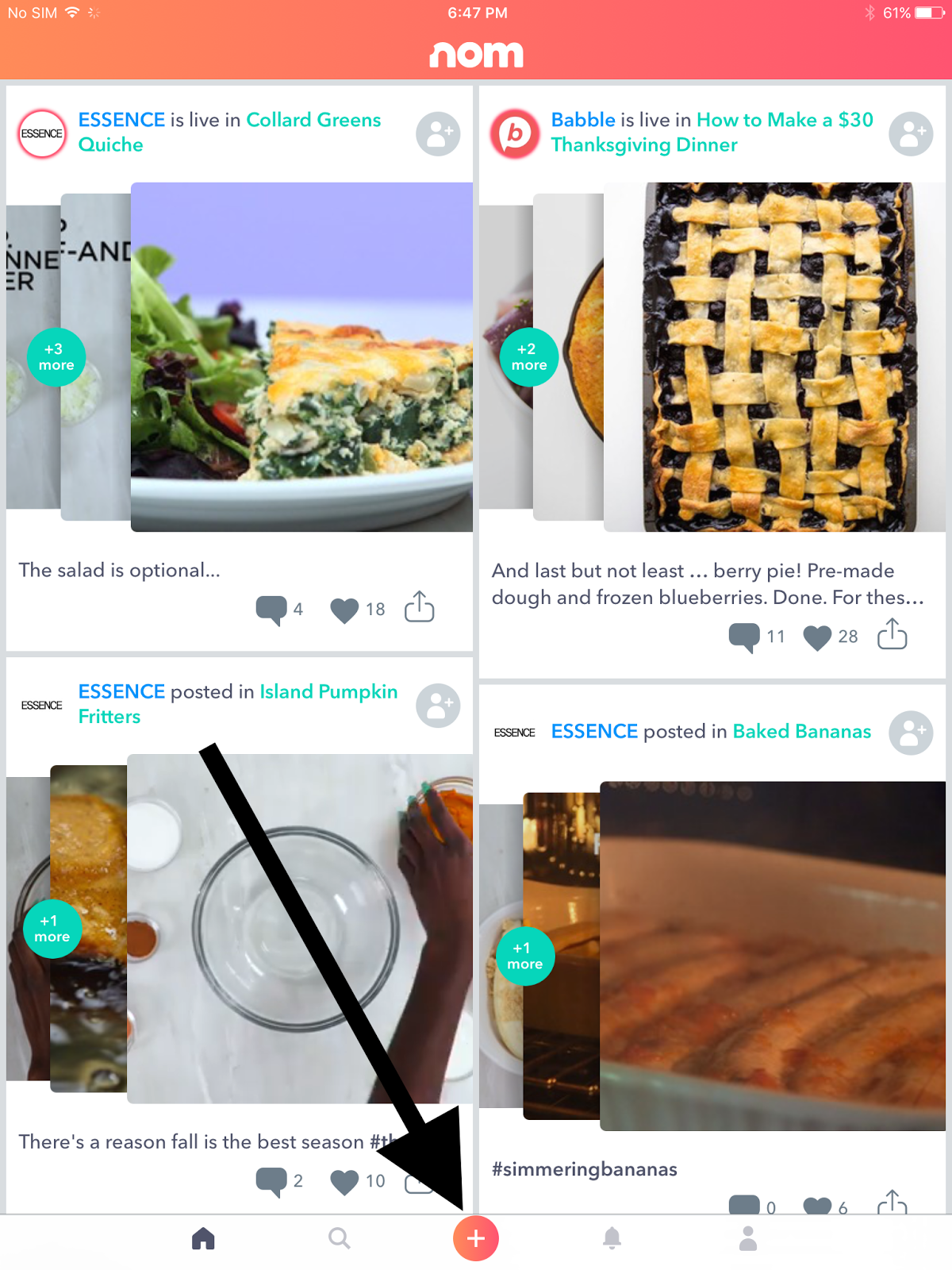
Nom app - logging into account via the "Browse" feature
Nom app (nom, v 2.1.32 build 598) on an iPad Mini
Date: 11/18/2016
Description:
Creating a new account or logging into a pre-existing
account from the “JUST BROWSE” anonymous mode of the app doesn’t work that
well. If I log into my account via a prompt adding a comment, the app becomes
difficult to use after I log in.
The bottom menu icons disappear, and the size of all posts
is distorted. I’ve noticed this on several occasions now.
This is much easier to show than it is to describe, so
please see the attached screenshots.
Steps to Reproduce:
1.
Create a nom account – delete app from iPad
2.
Re-download the nom app
3.
Launch the app and select “JUST BROWSE”
4.
Select any photo
5.
Select the comment option for the photo
6.
Enter in any comment and select “Send”
7.
From the “You must be signed in to comment on
posts” option, select either “SIGN UP WITH EMAIL” or “Already have an account?
Sign in”
8.
Sign into account
Result: Signing into an account via a prompt from a comment
box during anonymous browsing of the app results in the app becoming distorted
Expected: No problems signing into account from a comment
box during anonymous browsing
Select the "JUST BROWSE" option, then choose a photo with comments, and attempt to add a comment...
Type something an select "Send"...
Log into your existing account..
The app will load for a second, looking like this...
Nom app on an iPad - how do I change location for a photo?
Nom (version 2.1.32)
Date: 11/17/2016
Description:
How am I supposed to check-in to another place?
I downloaded Nom, created an account, gave Nom permission to
access my location.
If I upload a photograph, I see it is tagged with the
location I gave for my account. If I try to change this, and check-in someplace
else, nothing happens. I just stay on a screen with options to check into other
places, but selecting a place doesn’t check me in!
Please see the attached screenshots.
1.
Download Nom, create account, give app location
and camera access
2.
Press the “+” option
3.
Select the square to search your camera roll
4.
Select photo from camera roll – Select “USE
PHOTO”
5.
Dismiss the automatically generated location
option – select “Add a location”
6.
From the Check-in screen, search for a location
7.
Select one of the returned results
Result: I cannot seem to select (change) one of the returned
locations on the Check-in screen in order to add a different location to a
photograph
Expected: I would like to be able to change locations for a
photograph I upload
As you can see, I have granted location access to the Nom app...
I select the add option...
I select a photograph I want to upload...
I clear the location that appeared by default (I set this location for my profile)....
I tap the "Add a Location" option....
I cannot select (Check-in) to any place that appears.
As you can see, I have granted location access to the Nom app...
I select the add option...
I select a photograph I want to upload...
I clear the location that appeared by default (I set this location for my profile)....
I tap the "Add a Location" option....
I cannot select (Check-in) to any place that appears.
Subscribe to:
Comments (Atom)