Showing posts with label declining camera access. Show all posts

Tuesday, May 26, 2026

Goodwill Delivery app for iOS: "Settings" option after declining camera access does not take user out of the app

iOS 26.3.1

Goodwill Delivery app for iOS (version 2.0.10)

05/26/2026

Description:

In the country of Georgia, the grocery chain "Goodwill" offers an iOS app called Goodwill Delivery. Like most shopping apps, it includes a barcode scanner that requires camera access.


Goodwill Delivery app barcode scanner

The option to activate the camera from inside the Goodwill delivery app for iOS. 


When camera permission is denied, the app displays a "Camera Unavailable" dialog with a "Settings" button — a standard iOS pattern intended to direct the user to the app's Settings page so they can grant permission. However, tapping "Settings" does nothing. The user is left stranded inside the app with no way to reach Settings from that dialog.


Select "Don't Allow" from this option. You (the user) have clearly given your preference to the app. Per Apple's rules, all subsequent attempts to access the camera should result in an error message displayed - along with a working "Settings" option that exists the user out of the app. This app has a "Settings" option - but it does not work.


Settings option in Goodwill Delivery app


This behavior is inconsistent with Apple's expectation that a "Settings" button executes a valid system deep-link via UIApplication.openSettingsURLString. It appears to be a violation of App Store Review Guideline 2.1 (App Completeness), which requires that apps be fully functional before submission, with no dead ends or broken controls.

This is the first instance I have encountered of this pattern failing entirely within a shipping iOS app.

Steps to Reproduce:

  1. Download the Goodwill Delivery app for iOS (version 2.0.10)
  2. Complete any onboarding and advance to the home screen
  3. Tap the barcode icon to the right of the search input
  4. In the "Goodwill would like to access the camera" permission dialog, tap Don't Allow
  5. From the home screen, select the barcode option a second time 
  6. In the "Camera Unavailable" dialog, tap Settings

Result: Tapping "Settings" does not navigate the user to the iOS Settings app or to the app's Settings page. The user remains inside the app with no recourse.

Expected: Tapping "Settings" should open the iOS Settings app to the Goodwill Delivery permissions page, allowing the user to grant camera access. 

Sunday, February 12, 2023

Vylo app for iOS: App crashes if camera switcher activated while camera permissions disabled

 iOS 16.3

Date: 02/12/2023

Vylo app for iOS (version 1.1.20)

Description:

There is an easy to reproduce crash with the current version (1.1.20) of the Vylo app for iOS. This app happens if the user declines camera access and then enters into the Record Video screen and selects the camera switch option. 

I always attempt this with every app that I download, and this was the rare (perhaps only) time that it crashes an iOS app. Here's a link to a video of the crash. 

Download the Vylo app and set it so that the app does NOT have camera access. 

Screenshot of the crash dump. 


Steps to Reproduce:

1. Create a Vylo account

2. Decline camera access 

3. With camera access declined, select "+ Create"

4. Select "Record Video"

5. From the AVCam prompt, select "OK"

6. Select the Camera Switch option in the bottom right corner of the screen

Result: The Vylo app will crash if the use selects the camera switch option with camera access declined 

Expected: App should not crash if the camera switch option is activate with camera access declined 

With camera access declined, select the "+ Create" option...

With camera access declined, select "Record Video"

Select the "OK" option...

The app will crash after the camera switch option is activated. This is a rare crash, as I do this with every app I download and have never seen this particular crash, to my recollection. 


Sunday, August 16, 2020

Trendblog - Fashion & Outfits app for iOS: Declining camera access strands user on a black screen

iOS 13.6
Trendblog - Fashion & Outfits app for iOS (version 6.9.25)
Date: 08/16/20

Description:

Here's an odd problem that I have never seen with an iOS app before. During the account creation process with the Trendblog - Fashion & Outfits app, there's an option to take a photo for the profile picture.

Declining camera access works, but it strands the user on a completely black screen. There is no visible UI.


This is an odd problem, and an issue that I don't think I have ever seen before.

Steps to Reproduce:

1. Download and launch the Trendblog - Fashion & Outifits app for iOS
2. Create an account
3. Select the camera icon to upload a profile photo
4. Declining camera access

Result: Declining camera access strands the user on a non-responsive black screen

Expected: Declining camera access should not strand the user on a non-responsive black screen

Tuesday, August 11, 2020

The North Face app for iOS: App crashes if the user declines camera access from prompt

iOS 13.6
The North Face app for iOS (version 7.5.1)
Date: 08/11/20

Description:

Here's an example of a fairly common crash that happens with multiple iOS apps. This particular crash occurs with the current version of the The North Face app that is available to download from the Apple App Store.


Here's a video of the crash:
The app will crash if the user declines camera roll access. Here's the crash dump:


This is a common crash that will often see with iOS app. 

Steps to Reproduce:

1. Download and launch The North Face app for iOS
2.  Select "JOIN NOW"
3. From the "Become a VIPeak member"  screen, select the scanner option in the upper right
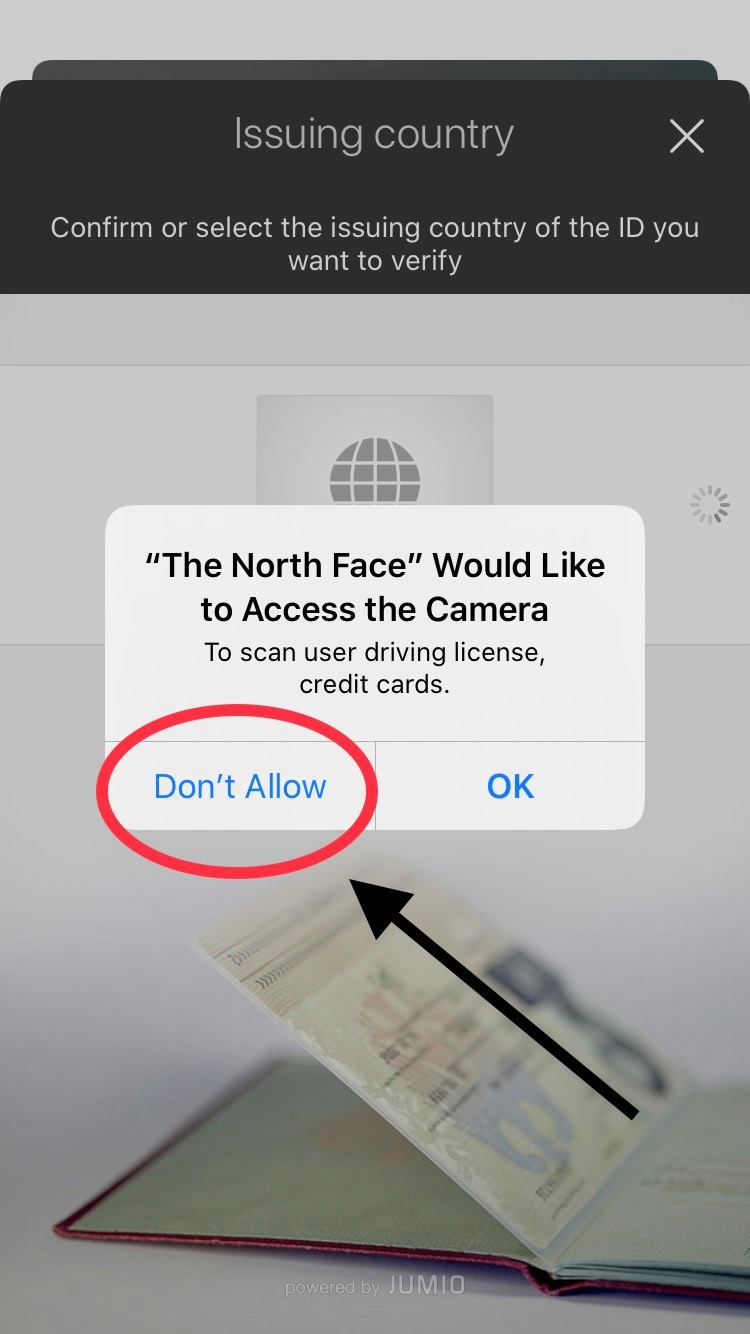
4. From the "Issuing Country" screen, select "Don't Allow"from the camera prompt pop-up

Result: Declining camera access to The North Face app for iOS results in the app crashing 

Expected: Declining camera access to The North Face app for iOS should not crash the app

Download and launch The North Face app for iOS...

Select the "JOIN NOW" option...

Select the scanner option in the upper right...

If the user selects the "Don't Allow" option, the app will crash.