Monday, February 14, 2022

RA Camping for iOS: Read our Privacy Policy link does not work

 iOS 15.3 on an iPhone 8

RA Camping for iOS (version 4.11.0)

Date: 02/14/2022

Description: 

Minor problem with the RA Camping.

There is a "Read our Privacy Policy" link on a Sign Up and the Forgot Password page that does not work. Nothing happens when the user presses the link. I've gotten this to reproduce on two separate iOS devices. 

Take a look at the following screenshots:

The "Read our Privacy Policy" link does nothing when pressed. 


This "Read our Privacy Policy" link does not work.


Steps to Reproduce:

1. Launch the RA Camping app 

2. Head to "Sign In"

3. From the Sign In page select "Join Now"

4. From the Sign Up page select the "Read our Privacy Policy" option

Result: there is a "Read our Privacy Policy" link on a Sign Up page in the app that does not work. It does not take to the user to aspiraconnect.com/privacy-policy

Expected: the "Read our Privacy Policy" link on the Sign Up page of the RA Camping app for iOS should work and take the user to a privacy policy page 

Saturday, February 12, 2022

Mr & Mrs Smith Boutique Hotels app for iOS: Canceling out of Facebook login results in bad error messaging

 iOS 15.3 on an iPhone 8

Mr & Mrs Smith Boutique Hotels app for iOS (version 4.0.6)

Date: 03/07/2022


Description:


Here's a bug I haven't seen in a long while! With the Mr & Mrs Smith Boutique Hotels app for iOS, there is an option to use your Facebook login to create an account. If you cancel out of this prompt, this is the error message that is displayed:


An error message of "The operation couldn't be completed. (User cancelled login. error 400.)" appears.


Steps to Reproduce:

1. Download and launch the Mr & Mrs Smith Boutique Hotels app for iOS

2. Select "JOIN FOR FREE"

3. Select the blue Facebook option 

4. From the "SmithHotels" wants to Use" prompt, select "Cancel"

Result: Canceling out of the Facebook login prompt during account creation results in a less than informative error message

Expected: Error messages this bad shouldn't be displayed with iOS 


Select the "JOIN FOR FREE" option...

Select the Facebook option...

Select "Cancel"...


Saturday, February 5, 2022

StockX app for iOS: Share Sheet: Missing AirDrop icon

 iOS 15.3 on an iPhone 8

StockX - Buy & Sell Authentic app for iOS (version 5.6.10)

Date: 03/05/2022


Description:

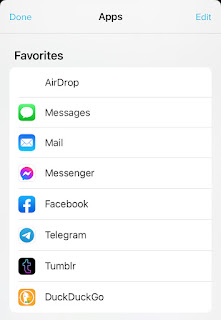
Here's an odd one with the StockX app for iOS. This has reproduced for me on two different iPhones. The AirDrop icon is missing from the iOS share sheet:


The AirDrop icon is not visible.

The AirDrop icon does not display under "Favorites" either. 

I have only seen this problem happen once before, with the VRBO Vacation Rentals app

Steps to Reproduce:

1. Launch the StockX app for iOS (version 5.6.10)
2. Head to any product displayed in the app
3. Select the share option 
4. Note that the AirDrop icon does not display in the share sheet

Result: with the StockX app, the AirDrop icon does not display in the share sheet 

Expected: the AirDrop icon should always display 

Select the share option from any shoe...

The AirDrop icon does not display. 


Sunday, January 30, 2022

Wander app for iOS: Privacy Policy page mentions Internet Explorer and does not display images correctly

 iOS 15.3

Date: 01/30/2022

Wander app for iOS (version 1.0.16)


There are two minor problems on the Privacy Policy page of the Wander app for iOS. When viewed from the iOS app, the Privacy Policy page displays 3 question marks inside of boxes. The app is not displaying these images correctly. 

This is easier to show than to describe. Please take a look at this:


As you can see, there are 3 question marks in this sentence describe how the user can use Internet Explorer. 

Take a look at how it looks with the Android app. You will see that there are not 3 question marks:


Take a look at the sentence that begins with "For example, in the Internet Explorer menu bar, select: Tools..."

This is how it looks on Web:


This one shows arrows.

Please fix for iOS. 

Also: Hasn't "Internet Explorer" been formally dropped as name? Isn't it Microsoft Edge now?

Steps to Reproduce:

1. Launch the Wander app for iOS

2. Select "Skip" during the video intro

3. Select "Privacy Policy"

4. Scroll down to "Cookies and Other Tracking Technologies"

5. Note that there are 3 boxes with questions marks instead of images 

Result: On the Privacy Policy page of the Wander app there are three boxes with question marks in them

Expected: There should not be any boxes with question marks on the Privacy Policy page of the Wander app. Also, I don't think that Internet Explorer is referred to as Internet Explorer any more. I think it is Microsoft Edge (?)


Select "Skip" from the intro video...


Select "Privacy Policy"...


Scroll down on the Privacy Policy....


Three question marks in boxes - the default image is not displaying properly. This same problem does not happen with the Wander app for Android. 


Sunday, January 9, 2022

Amazon Shopping app for iOS: Non functioning Location Services prompt violates Human Interface Guidelines

 Amazon Shopping app for iOS (version 19.1.0)

iOS 15.2 

Date: 01/09/2022

Description:

NOTE: This is not being written about functionality. This is about adherence to Apple's Human Interface Guidelines. This problem should have, presumably, prevented this app from making it through the App Store Review process...

The Amazon app for iPhone has an unusual option labeled "Enable Location Services" buried in the app's user interface in an area listed as "Legal & About"

This "Enable Location Services" option looks like this:


This option does NOT enable the location services with the app. This sure seems to be a violation of the Human Interface Guidelines which state that "imperative sentences" that do not "provide justification" are not allowed to be used as prompts to enable location services:

See this portion of the Human Interface Guidelines:

This portion of the Human Interface Guidelines states that "An imperative sentence that doesn't provide any justification." is not allowed. 


I've gotten this to reproduce with multiple iPhone devices. The exact same issue does NOT reproduce with Android. There is the same screen with Android, but no option to select "Enable Location Services" - I believe that this button was meant to lead to legal text. 


Steps to Reproduce:

1. On an iOS device running iOS 15.2, download and launch the Amazon Shopping app

2. Select the triple slider in the bottom right of the screen

3. Select "Settings" 

4. Select "Legal & About"

5. From the Amazon App for iPhone page, select the "Enable Location Services" option 

6. Note that the "Enable Location Services" option disappears after it is selected 

Result: There is an option in the Amazon Shopping app for iOS user interface labeled "Enable Location Services" - selecting this option does NOT enable location services for the Amazon Shopping app. 

Expected: There should not be a button simply labeled "Enable Location Services" as this does not provide "justification" for granting location access to the Amazon Shopping app


Download and launch the Amazon Shopping app for iOS...

Select the "Legal & About" option...

There's an "Enable Location Services" button. Selecting this button results in the option disappearing. 


Monday, January 3, 2022

RealSelf app for iOS: Share sheet - no subject line when sharing using the native iPhone Mail App

 iOS 15.2

RealSelf app for iOS (version 6.4.5)

Date: 01/03/2022

Description:

There's a minor problem when sharing something from inside the RealSelf app for iOS using the native iPhone Mail app.

The default "Check out this doctor on RealSelf" text is not automatically generated in the subject line of the email. The subject line is just blank. This only happens with the native iPhone Mail app. This is a rarity among iPhone apps.

This is how it currently looks using the native iPhone Mail app:

Select the share option...

Select the iPhone's "native" mail app...

The subject line of the auto-generated message is blank.


This is how it looks after selecting the Gmail option from the share sheet. You'll notice that a default "Check out this doctor on RealSelf" subject line is added:

Auto-generated e-mail from Gmail has a subject line...

This is how it looks after selecting the Yahoo Mail option. Once again, you'll notice that a default "Check out this doctor on RealSelf" subject line is added:


This is a less than optimal user experience and it would be great if the default message could be added for users who use the native iPhone mail app.


Steps to Reproduce:

1. Launch the RealSelf app (version 6.4.5)

2. Sign into an account 

3. Head to any provider listed in the app and select the share option 

4. From the iOS share sheet, select the native iOS mail app

5. Note that the subject line is blank

6. Repeat same steps with Gmail and Yahoo options from share sheet

7. Note that the subject line is automatically generated 

Result: The subject line is blank if the user selects the native iPhone mail app sharing option from the iOS share sheet 

Expected: The subject line should always be populated with the "Check out this doctor on RealSelf" text if the user selects the native iPhone mail app option from the share sheet 

Wedding Spot app for iOS: Default image for New Mexico does not load

 iOS 15.2

Wedding Spot app for iOS (version 1.102)

Date: 01/03/2022

Description:

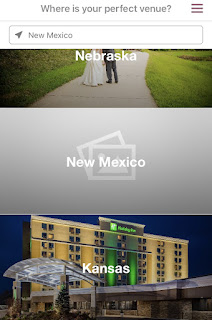
Here is another minor problem with the Wedding Spot app for iOS. Take a look at what I am seeing (on two different iPhones) when I look at the default image for the state of New Mexico:


The photograph (the default image) for the state of New Mexico never loads. 

I believe that it is take from this wedding venue:


The Aurelia Gallery wedding venue in Santa Fe appears to have a photograph that never loads. This is bad end user experience.

Steps to Reproduce:

1. With a newly created account, head into the Wedding Spot app for iOS
2. Scroll down to the state of New Mexico

Result: There is no default image/the photograph does not load - for the state of New Mexico

Expected: The image for the state of New Mexico should load - the state of New Mexico should have a photograph that displays inside of the Wedding Spot app