Wednesday, September 16, 2020

Weee! - Asian Grocery app for iOS: User restriction of camera roll access not respected

 iOS 13.7

Weee! - Asian Grocery app for iOS (version 10.6.1)

Date: 09/16/20

Description:

A somewhat common bug regarding access to the iOS camera roll occurs with the Weee! - Asian Grocery app for iOS.

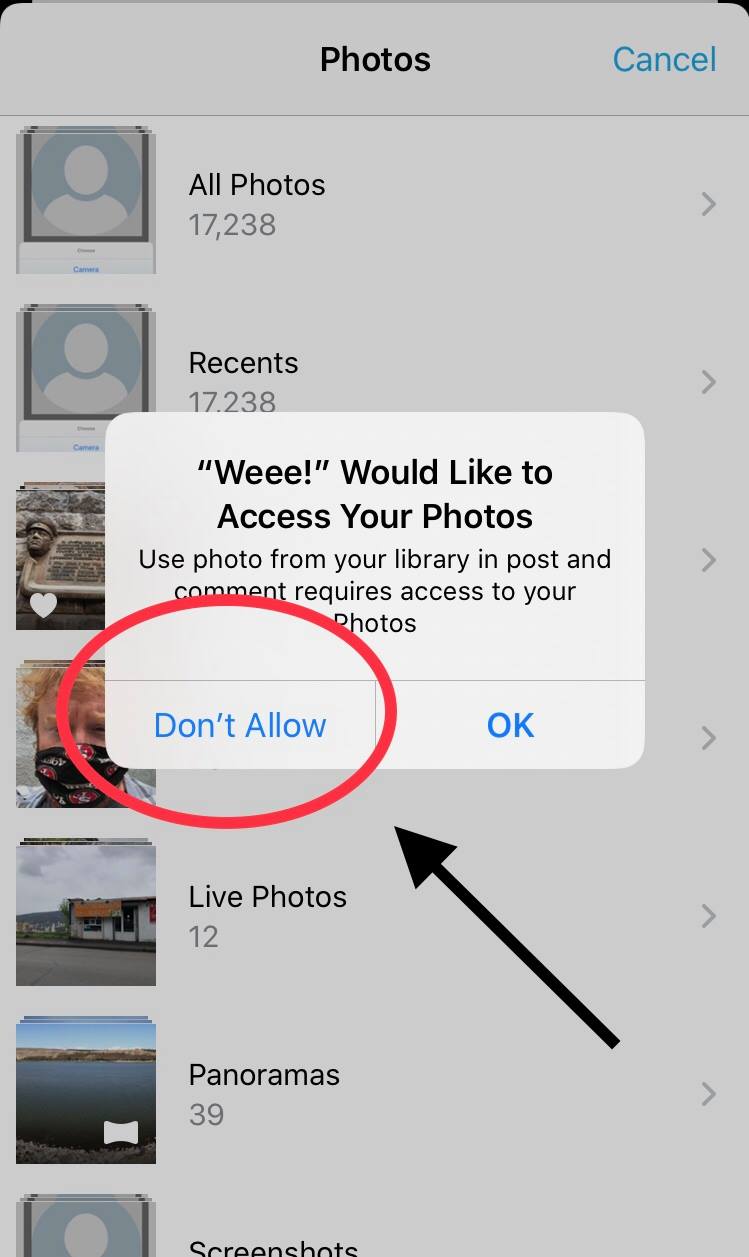
Here are a couple of screenshots which explain the problem.


The prompt that asks permission to access the camera roll photos appears after the app has already accessed the camera roll. Declining access by selecting "Don't Allow" does nothing....


This error message appears which claims that Wheee! cannot access photos - even though the app has full access.

This has happened with a number of other apps, including Tangi, Neiman Marcus and TopShopUS. Some apps have fixed this, while others have not. 

Steps to Reproduce:

1. Download and launch the Weee! app 

2. Create a new account 

3. Select the "Account" icon in the bottom right 

4. Select the pencil icon 

5. Select the "Picture" option on the "Account Profile" page

6. From the "Change Picture" screen select "Choose"

7. Select the "Photo Library" option 

8. Note that the photo library menu and the user permission prompt appear at the same time

9. Select the "Don't Allow" option from the prompt

10. Note the dialog that says the app doesn't have access

11. Exit out and select "Photo Library" again 

12. App has access to the Camera Roll


Result: The Weee! - Asian Grocery a pp doesn't recognize the user selecting "Don't Allow" from the camera roll permission prompt 


Expected: The Weee! - Asian Grocery app should respect a user who selects "Don't Allow" from a camera roll permission prompt 


Download the app...


Create an account and then select the pencil thing...

Select the "Picture" option...
Select the "Choose" option...


Select the "Photo Library" option...


Select the "Don't Allow" option...


Even though the user has specifically disallowed access, and even though the app presents a message about a lack of access, the app does, in fact, have full access. 


Triller: Social Video Platform app for iOS: Privacy Policy and Terms and Conditions links connect to a 404 page

 iOS 13.7

Triller: Social Video Platform app for iOS (version 14.3)

Date: 09/16/20


Description:

Minor issue with the Triller app and their Twitter authorization page. On this page, Triller's Privacy Policy and Terms and Conditions links lead to 404 error messages. 

These both should be working on the Twitter Oauth page.


Steps to Reproduce:

1. Download and launch the Triller app for iOS

2. Select the profile icon in the bottom right

3. Select the red "Sign Up/log in" button

4. Choose the Twitter option 

5. From the Twitter Oauth page, scroll down and click on either "Privacy Policy" and "Terms and Conditions" 

Result: The "Privacy Policy" and "Terms and Conditions" links lead to 404 error messages 

Expected: The "Privacy Policy" and "Terms and Conditions" links on Triller's auth form


Scroll down on this page...

Click on either the "Privacy Policy" or "Terms and Conditions" links...

Error page...


Sunday, September 13, 2020

Seva Search app for iOS: Non-Working "Add Account" button on the "Turn on sync?" screen

 iOS 13.7

Seva Search app for iOS

Date: 09/13/20

Description:

There is a button inside of the app that doesn't seem to do anything when pressed.  There is a screen in the Settings portion of the app that is titled "Sync and Google Services."

On this page, there is a "Sign in to Seva" option. After selecting this option, the user is take to a "Turn on sync?" page. On this page, there is a button called "Add Account" that does nothing when pressed. 

This is easier to show than to describe, so please take a look at the attached screenshots. 

Steps to Reproduce:

1. Download and launch the app

2. Select the "..." in the bottom right

3. Select the "Settings" option

4. Select the "Privacy" option

5. Click on the "Sync and Google Services" link

6. Select the "Sign in to Seva" option 

7. On the "Turn on sync?" page, select the blue "Add Account" button

Result: The blue "Add Account" button on the "Turn on sync?" screen does not seem to work

Expected: The blue "Add Account" button on the "Turn on sync?" screen should work 

Open the app...


Select the option in the bottom right


Select the "Settings' option...

Select the "Privacy" option...

Select the "Sync and Google Services" link...


Select the "Sign in to Seva" option...


Pressing the "Add Account" button doesn't seem to do anything. 

Wednesday, September 2, 2020

The Custom Movement app for iOS: Bad Error Messaging Gets Stuck on Screen

iOS 13.6.1
The Custom Movement app for iOS (version 1.2.6)
Date: 09/03/20

Description:

There's a problem with an error message that appears from a "Forgot Password" input box inside of an app called The Custom Movement.

The error message has two problems: it is not user friendly, and it gets stuck and remains on screen as the user navigates through other areas of the app.

Take a look at what the error message says - obviously not user-friendly:

Then take a look at a video that shows how the error messages remains on screen:


So, obviously two problems. One is that the error message itself is less than user friendly. The other problem is that it gets stuck on screen.

Steps to Reproduce:

1. Download and launch The Custom Movement app
2. Select the "Profile" option in the bottom right
3. Select "Forgot Password"
4. Click inside the "Username or email" input box
5. Press the space bar twice and select "Done" on the keyboard
6. Click on "Next"

Result: Odd and less than user friendly error message appears to the user after entering in a blank (null) space into the "Forgot Password" area of the app. Error message remains on screen

Expected: Error messaging should be understandable to the user - error messages should not get stuck on screen

Friday, August 28, 2020

Wholesale7.net app for iOS:Sign Out button appears even in guest mode

iOS 13.6
Wholesale7.net app for iOS (version 2.3.4)
Date: 08/28/20

Description:

Here's a bizarre bug that I have yet to ever see with any iOS app. This problem occurs with an app called Wholesale7.net for iOS.

This is easier to show than to describe - the screenshots below describe the issue.

With this app, there's always an option to "log out" on a settings screen. This "log out" option/button is always there, even if the user has never registered or signed into an account. To see this option in the anonymous (or guest mode) of an app is bizarre.

I don't believe that I have every seen this particular problem with an iOS app.

Take a look at this screenshot:

I have not created an account. There is a settings screen that always has a "Sign Out" button. This "Sign Out" button doesn't do anything.

This is extraordinarily odd user experience for an iOS app - especially for a shopping app that is on the top of the charts in the Apple App Store for shopping apps!

Steps to Reproduce:

1. Download and launch the Wholesale7.net app for iOS
2. Select the "Account" option in the bottom right hand corner
3. Select the gear box option in the top left of the "My Account" screen
4. Note that a "Sign Out" button is at the bottom of the screen - even though the user has not created an account!

Result: A "Sign Out" button appears even in anonymous/guest mode

Expected: If the user has not created an account than there should not be a "Sign Out" option

Download and launch the app...

As you can see there is a "Sign In/Register" option and there is a gearbox option in the upper right...

There is a "Sign Out" option even in guest mode?

There's a log out option - even the app is in guest mode...

The app claims that the user has logged out successfully - even though the user is in guest mode.

Sunday, August 23, 2020

Brutalitees app for iOS: Facebook Messenger sharing - can't see the UI

iOS 13.6 (iOS device set to the light mode)
Brutalitees app for iOS (version 2.0)
Date: 08/23/20

Description:

There's a minor problem with the Brutalitees app for iOS and the Facebook Messenger sharing option.

This is how the Facebook Messenger sharing UI looks. The "Done" and "Send To" and "Send" options are not visible.

Steps to Reproduce:

1. With the iOS device set to the light mode - launch the app
2. Select the share option from any item
3. From the iOS share sheet, select the Facebook Messenger option
4. Note that the "Done" and "Send To" and "Send" options are not visible on the Facebook Messenger UI

Result: The Facebook Messenger UI does not display correctly when accessed from inside the Brutalitees

Expected: With the Facebook Messenger share UI that is accessible from inside the Brutalitees app, the "Done" and "Send To" and "Send" options should be visible

Launch the app...

Select the share option...

Select the Facebook Messenger share option...

Can't see the UI!


Thursday, August 20, 2020

Amazon app for iOS: Dead link on Mattress Recycling Fees

iOS 13.6
Amazon app for iOS (15.16.0)
Date: 08/20/20

Description:

Minor problem with an external link that is displayed in the help section of the Amazon app for iOS.

There is an external link to the Mattress Recycling Council website inside of a help section in the Amazon app for iOS.

This link does not work. The website doesn't load. Curiously mobile safari has no problem opening the site. And Amazon's website has a working link to it:

https://www.amazon.com/gp/help/customer/display.html?nodeId=202074570

Not sure why it is not working with the iOS app - but it probably should.


Steps to Reproduce:

1. Launch the app
2. Sign into account
3. Select the side bar menu in upper left
4. Select "Customer Service" at the bottom
5. In the "Need More Help?" box, enter "mattress"
6. Select the "Mattress Recycling Fees" option
7. Select the https://mattressrecyclingcouncil.org/ link

Result: There is a non-working link inside of the Amazon iOS app on the Mattress Recycling Fees page

Expected: If there is an external link inside of the Amazon iOS app, it should work

Enter in "Mattresses" inside of this input box...

Select the "Mattress Recycling Fees" option...

From this "Mattress Recycling Fees" page, click on the link...

This website doesn't seem to load.