iOS 13.6 (iOS device set to the light mode)
Brutalitees app for iOS (version 2.0)
Date: 08/23/20
Description:
There's a minor problem with the Brutalitees app for iOS and the Facebook Messenger sharing option.
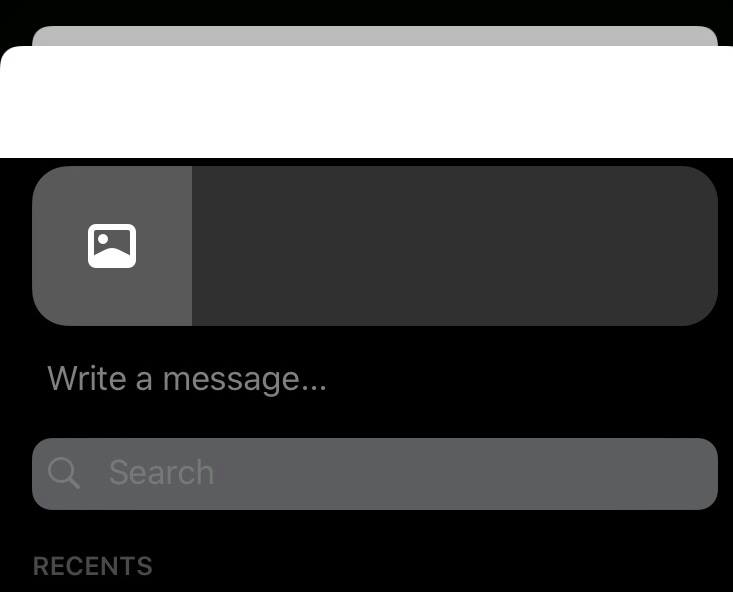
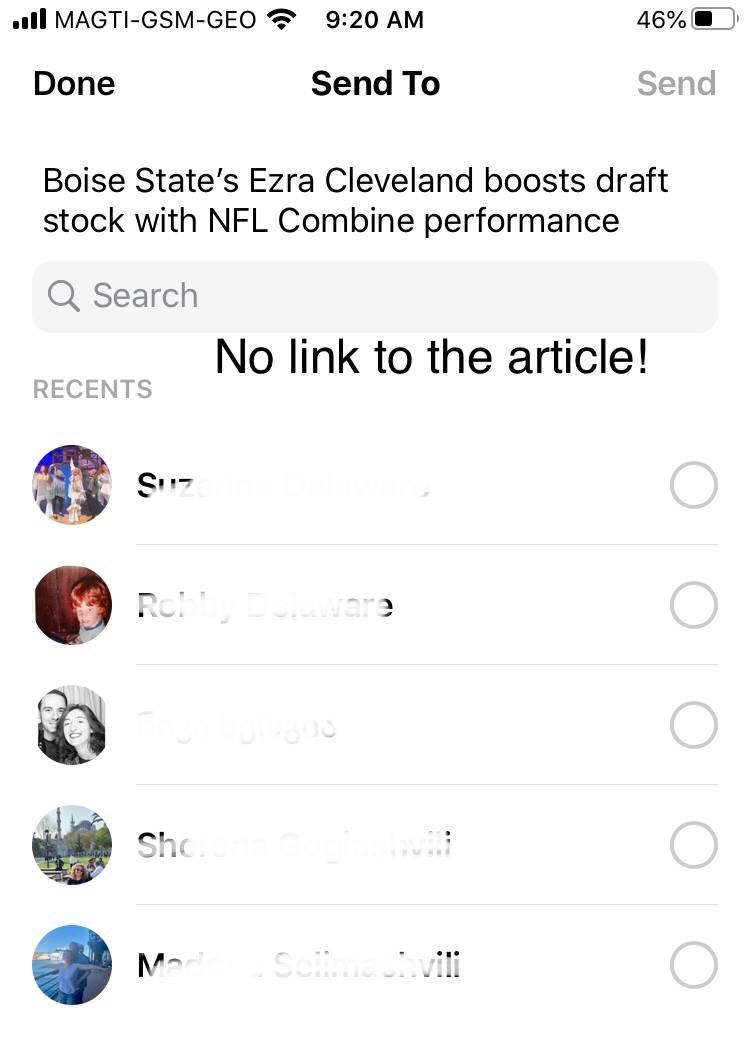
This is how the Facebook Messenger sharing UI looks. The "Done" and "Send To" and "Send" options are not visible.
Steps to Reproduce:
1. With the iOS device set to the light mode - launch the app
2. Select the share option from any item
3. From the iOS share sheet, select the Facebook Messenger option
4. Note that the "Done" and "Send To" and "Send" options are not visible on the Facebook Messenger UI
Result: The Facebook Messenger UI does not display correctly when accessed from inside the Brutalitees
Expected: With the Facebook Messenger share UI that is accessible from inside the Brutalitees app, the "Done" and "Send To" and "Send" options should be visible
Launch the app...
Select the share option...
Select the Facebook Messenger share option...
Can't see the UI!
Writing down random bugs to keep my mind limber.
Showing posts with label Facebook Messenger sharing. Show all posts
Sunday, August 23, 2020
Monday, August 10, 2020
Indigo Beach app for iOS: Facebook Messenger UI menu options are not visible with the device set to the light mode
iOS 13.6 (device set to light mode)
Indigo Beach app for iOS (version 1.2)
Date: 08/11/20
Description:
Minor problem an app called Indigo Beach for iOS.
Take a look at the Facebook Messenger sharing UI with the device set to the dark mode:
Looks fine. The "Done" and "Send To" and "Send" area all visible.
Take a look at the Facebook Messenger sharing UI with the device set to the light mode:
Can't see the "Done" or the "Send To" or the "Send" options.
Steps to Reproduce:
1. Set the iOS device to the light mode
2. Launch the Indigo Beach app
3. Select any product and select share
4. From the iOS share sheet, select the FB Messenger option
Result: With the iOS device set to the light mode, the "Done" and "Send To" and "Send" options from the Facebook Messenger sharing UI are not visible
Expected: The "Done" and "Send To" and "Send" options from the Facebook Messenger sharing UI should always be visible
Indigo Beach app for iOS (version 1.2)
Date: 08/11/20
Description:
Minor problem an app called Indigo Beach for iOS.
Take a look at the Facebook Messenger sharing UI with the device set to the dark mode:
Looks fine. The "Done" and "Send To" and "Send" area all visible.
Take a look at the Facebook Messenger sharing UI with the device set to the light mode:
Can't see the "Done" or the "Send To" or the "Send" options.
Steps to Reproduce:
1. Set the iOS device to the light mode
2. Launch the Indigo Beach app
3. Select any product and select share
4. From the iOS share sheet, select the FB Messenger option
Result: With the iOS device set to the light mode, the "Done" and "Send To" and "Send" options from the Facebook Messenger sharing UI are not visible
Expected: The "Done" and "Send To" and "Send" options from the Facebook Messenger sharing UI should always be visible
Sunday, July 19, 2020
Vinted USA app for iOS: Share Sheet - Dark Mode - Facebook Messenger UI
iOS 13.6
Vinted USA app for iOS (version 20.12.8)
Date: 07/19/20)
Description:
Minor problem with the iOS share sheet, the Facebook Messenger UI, and the Vinted USA app.
Take a look:
You'll notice that with the iOS device set to the dark mode, the "Done" and "Send To" and "Send" options are not visible from the Facebook Messenger pop-up UI.
Steps to Reproduce:
1. Set the iOS device to the dark mode
2. Download and launch the app
3. Skip account creation
4. Select any product
5. Select the share option
6. From the share sheet, select the Facebook Messenger option
7. Note that the Facebook Messenger UI has a white bar at the top
Result: With the iOS device set to the dark mode, the "Done" and "Send to" and "Send" options are not visible on the Facebook Messenger UI that is activated from the iOS share sheet
Expected: Even if the app does not support a dark mode, the "Done" and "Send to" and "Send" options on the Facebook Messenger UI should always be visible
Select any product listed in the app...
Select the "Share" option...
Select the Facebook Messenger option...
Menu options are not visible.
Vinted USA app for iOS (version 20.12.8)
Date: 07/19/20)
Description:
Minor problem with the iOS share sheet, the Facebook Messenger UI, and the Vinted USA app.
Take a look:
You'll notice that with the iOS device set to the dark mode, the "Done" and "Send To" and "Send" options are not visible from the Facebook Messenger pop-up UI.
Steps to Reproduce:
1. Set the iOS device to the dark mode
2. Download and launch the app
3. Skip account creation
4. Select any product
5. Select the share option
6. From the share sheet, select the Facebook Messenger option
7. Note that the Facebook Messenger UI has a white bar at the top
Result: With the iOS device set to the dark mode, the "Done" and "Send to" and "Send" options are not visible on the Facebook Messenger UI that is activated from the iOS share sheet
Expected: Even if the app does not support a dark mode, the "Done" and "Send to" and "Send" options on the Facebook Messenger UI should always be visible
Select any product listed in the app...
Select the "Share" option...
Select the Facebook Messenger option...
Menu options are not visible.
Tuesday, April 21, 2020
Blinkist app for iOS: Share sheet - Facebook Messenger UI is not displayed properly
iOS 13.4.1
Blinkist app for iOS (version 6.2.0)
Date: 04/21/20
Description:
One of the most common problems I have been being seeing lately also happens with the Blinkist app.
The Blinkist app does not display the Facebook Messenger UI correctly, after it is accessed via the iOS share sheet. This happens with the iOS device set to either light or dark modes.
Take a look at how Blinkist displays this UI:
This is how the Blinkist app displays the Facebook Messenger UI when the iOS device is set to the light mode. You'll notice the black bar at the top. Shouldn't be there.
This is how it is displayed when the device is set to dark mode. When set to the dark mode there is a large white bar...
Steps to Reproduce:
1. With the iOS device set to either light or dark modes, download and launch the Blinkist app for iOS
2. After entering into the app, select the "Free Daily Pick"
3. Select the "..." option in the upper right hand corner of the screen
4. From the "More Options" screen select "Share"
5. From the share sheet, select "Messenger"
Result: The Blinkist app does not display the Facebook Messenger sharing UI correctly, when it is activated via the share sheet by the app. With the iOS device set to either the light or dark modes, there is an incorrectly placed bar on top of the UI
Expected: Shouldn't be doing this. Blinkist should display the Facebook Messenger UI correctly
Select this option...
Select the share option...
Select Messenger from the share sheet.
Blinkist app for iOS (version 6.2.0)
Date: 04/21/20
Description:
One of the most common problems I have been being seeing lately also happens with the Blinkist app.
The Blinkist app does not display the Facebook Messenger UI correctly, after it is accessed via the iOS share sheet. This happens with the iOS device set to either light or dark modes.
Take a look at how Blinkist displays this UI:
This is how the Blinkist app displays the Facebook Messenger UI when the iOS device is set to the light mode. You'll notice the black bar at the top. Shouldn't be there.
This is how it is displayed when the device is set to dark mode. When set to the dark mode there is a large white bar...
Steps to Reproduce:
1. With the iOS device set to either light or dark modes, download and launch the Blinkist app for iOS
2. After entering into the app, select the "Free Daily Pick"
3. Select the "..." option in the upper right hand corner of the screen
4. From the "More Options" screen select "Share"
5. From the share sheet, select "Messenger"
Result: The Blinkist app does not display the Facebook Messenger sharing UI correctly, when it is activated via the share sheet by the app. With the iOS device set to either the light or dark modes, there is an incorrectly placed bar on top of the UI
Expected: Shouldn't be doing this. Blinkist should display the Facebook Messenger UI correctly
Select this option...
Select the share option...
Select Messenger from the share sheet.
Monday, April 20, 2020
Joom app for iOS: Share sheet and Facebook Messenger - FB Messenger UI not displaying correctly with the device set to dark mode
iOS 13.4.1
Joom app for iOS (version 2.33.2)
Date: 04/20/20
Description:
Yet another app that has a problem with how it displays the Facebook Messenger sharing UI in the share sheet.
This time the app is called Joom. The Joom app only has this problem when the iOS device is set to dark mode. While Joom doesn't support dark mode, it shouldn't display the FB Messenger like this:
Steps to Reproduce:
1. Set the iOS device to dark mode
2. Download and launch the Joom app
3. Select any product listed in the Joom app
4. Share any product/activate the share sheet
5. Select the Facebook Messenger option
6. Note Facebook Messenger UI has a discolored bar at the top
Result: With the iOS device set to the dark mode, the Joom app displays the Facebook Messenger pop-up UI incorrectly
Expected: The Joom app for iOS should display the Facebook Messenger UI accessible via the share sheet correctly - there shouldn't be the discolored bar at the top of the pop-up
Select any product listed in the Joom app. Then select this option in the upper right...
Select the "Share post" option...
If the device is set to the dark mode, the Joom app doesn't display the Facebook Messenger UI correctly. Check out the white bar.
Joom app for iOS (version 2.33.2)
Date: 04/20/20
Description:
Yet another app that has a problem with how it displays the Facebook Messenger sharing UI in the share sheet.
This time the app is called Joom. The Joom app only has this problem when the iOS device is set to dark mode. While Joom doesn't support dark mode, it shouldn't display the FB Messenger like this:
Steps to Reproduce:
1. Set the iOS device to dark mode
2. Download and launch the Joom app
3. Select any product listed in the Joom app
4. Share any product/activate the share sheet
5. Select the Facebook Messenger option
6. Note Facebook Messenger UI has a discolored bar at the top
Result: With the iOS device set to the dark mode, the Joom app displays the Facebook Messenger pop-up UI incorrectly
Expected: The Joom app for iOS should display the Facebook Messenger UI accessible via the share sheet correctly - there shouldn't be the discolored bar at the top of the pop-up
Select any product listed in the Joom app. Then select this option in the upper right...
Select the "Share post" option...
If the device is set to the dark mode, the Joom app doesn't display the Facebook Messenger UI correctly. Check out the white bar.
Labels:
Facebook Messenger sharing,
iOS share sheet,
Joom,
Joom app,
share sheet
Thursday, April 16, 2020
Slickdeals app for iOS: Share sheet - Facebook Messenger UI not displaying correctly
iOS 13.4.1
Slickdeals app for iOS (version 5.16.0)
Date: 04/16/20
Description:
A common problem with iOS 13 and the iOS share sheet also happens with the Slickdeals app for iOS. As has been documented with numerous apps, there are certain apps that do no display the Facebook Messenger UI correctly.
Some apps, such as the Slickdeals app, display the Facebook Messenger pop-up UI incorrectly with the iOS device set to either the light or dark modes. Bizarre that this is repeatedly happening. Even more bizarre that Apple doesn't make this a standard test case for app store release compliance.
But I digress!
This is easier to show than to describe, so please take a look at the following screenshots...
This is with the iOS device set to dark mode. After opening up the iOS share sheet's Facebook Messenger option, you will see the unsightly white bar at the top....
This is with the iOS device set to light mode. This time there's a black bar at the top of the screen. In both instances, you can't see "Send" or "Done"
Steps to Reproduce:
1. With the iOS device set to either light or dark mode, download the Slickdeals app for iOS (version 5.16.0)
2. Select any product featured in the app
3. Select the share option for any product
4. From the share sheet, select the Facebook Messenger option
5. Note the misplaced bar at the top of the FB Messenger UI
Result: The Slickdeals app for iOS displays the Facebook Messenger UI incorrectly when accessed via the iOS share sheet
Expected: The Slickdeals app for iOS should be displaying the Facebook Messenger UI correctly when accessed via the iOS share sheet
This isn't the first bug with Slickdeals that I have documented. But this was the first problem I have seen with the Slickdeals app and the iOS share sheet!
Slickdeals app for iOS (version 5.16.0)
Date: 04/16/20
Description:
A common problem with iOS 13 and the iOS share sheet also happens with the Slickdeals app for iOS. As has been documented with numerous apps, there are certain apps that do no display the Facebook Messenger UI correctly.
Some apps, such as the Slickdeals app, display the Facebook Messenger pop-up UI incorrectly with the iOS device set to either the light or dark modes. Bizarre that this is repeatedly happening. Even more bizarre that Apple doesn't make this a standard test case for app store release compliance.
But I digress!
This is easier to show than to describe, so please take a look at the following screenshots...
This is with the iOS device set to dark mode. After opening up the iOS share sheet's Facebook Messenger option, you will see the unsightly white bar at the top....
This is with the iOS device set to light mode. This time there's a black bar at the top of the screen. In both instances, you can't see "Send" or "Done"
Steps to Reproduce:
1. With the iOS device set to either light or dark mode, download the Slickdeals app for iOS (version 5.16.0)
2. Select any product featured in the app
3. Select the share option for any product
4. From the share sheet, select the Facebook Messenger option
5. Note the misplaced bar at the top of the FB Messenger UI
Result: The Slickdeals app for iOS displays the Facebook Messenger UI incorrectly when accessed via the iOS share sheet
Expected: The Slickdeals app for iOS should be displaying the Facebook Messenger UI correctly when accessed via the iOS share sheet
This isn't the first bug with Slickdeals that I have documented. But this was the first problem I have seen with the Slickdeals app and the iOS share sheet!
Tuesday, March 31, 2020
Lyst: Shop Designer Brands app for iOS: Facebook Messenger sharing - Light Mode - The Done and Send options are not appearing
iOS 13.4
Lyst: Shop Designer Brands app for iOS (version 6.46)
Date: 03/31/20
Description:
Minor problem with the Lyst app and sharing to Facebook Messenger. The Lyst app has a problem with sharing a product from their app via Facebook Messenger, using the iOS share sheet.
This is much easier to show than it is to describe, so please take a look at this screen shot:
This is what the user sees when they try to share a product from inside the Lyst app. This is with the iOS device set to light mode.
Compare that to dark mode:
Steps to Reproduce:
1. With the iPhone set to light mode, download and launch the Lyst app for iOS
2. Choose any product in the app
3. Choose the share option from any product
4. From the iOS share sheet, select the Facebook Messenger option
5. Note that the "Done" and "Send" options do not appear
Result: With the iOS device set to light mode, the "Done" and "Send" options on the Facebook Messenger pop-up do not appear when accessed via a product's share option
Expected: Users should always be able to see the "Done" and "Send" options from the Facebook Messenger pop-up UI accessible via the share sheet
Lyst: Shop Designer Brands app for iOS (version 6.46)
Date: 03/31/20
Description:
Minor problem with the Lyst app and sharing to Facebook Messenger. The Lyst app has a problem with sharing a product from their app via Facebook Messenger, using the iOS share sheet.
This is much easier to show than it is to describe, so please take a look at this screen shot:
This is what the user sees when they try to share a product from inside the Lyst app. This is with the iOS device set to light mode.
Compare that to dark mode:
Steps to Reproduce:
1. With the iPhone set to light mode, download and launch the Lyst app for iOS
2. Choose any product in the app
3. Choose the share option from any product
4. From the iOS share sheet, select the Facebook Messenger option
5. Note that the "Done" and "Send" options do not appear
Result: With the iOS device set to light mode, the "Done" and "Send" options on the Facebook Messenger pop-up do not appear when accessed via a product's share option
Expected: Users should always be able to see the "Done" and "Send" options from the Facebook Messenger pop-up UI accessible via the share sheet
Labels:
Facebook Messenger sharing,
iOS share sheet,
Lyst,
Lyst.com
HYPEBEAST app for iOS: Share sheet - light or dark mode - cant see Facebook Messenger options!
iOS 13.4
HYPEBEAST app for iOS (version 3.20)
Date: 03/31/20
Description:
Minor problem with the how HYPEBEAST integrates with the iOS share sheet. This happens in either light or dark mode.
When you share an article on HYPEBEAST using the share option and then select Facebook Messenger sharing, the "Done" and "Send" option aren't visible.
The entire top of this Facebook Messenger sharing option is simply replaced by a colored bar.
Take a look at the this screenshot, with the device set to dark mode:
Take a look at this screenshot, with the device set to the light mode:
Steps to Reproduce:
1. Download an launch the HYPEBEAST app for iOS
2. Select any article in the app
3. Select the share option
4. Select the Facebook Messenger option
Result: The HYPEBEAST app for iOS has a problem with the iOS share sheet and Facebook Messenger sharing - the "Done" and "Send" options aren't visible
Expected: The "Done" and "Send" options should be visible, with the iOS device set to either light or dark mode, with the HYPEBEAST app for iOS
HYPEBEAST app for iOS (version 3.20)
Date: 03/31/20
Description:
Minor problem with the how HYPEBEAST integrates with the iOS share sheet. This happens in either light or dark mode.
When you share an article on HYPEBEAST using the share option and then select Facebook Messenger sharing, the "Done" and "Send" option aren't visible.
The entire top of this Facebook Messenger sharing option is simply replaced by a colored bar.
Take a look at the this screenshot, with the device set to dark mode:
Take a look at this screenshot, with the device set to the light mode:
Steps to Reproduce:
1. Download an launch the HYPEBEAST app for iOS
2. Select any article in the app
3. Select the share option
4. Select the Facebook Messenger option
Result: The HYPEBEAST app for iOS has a problem with the iOS share sheet and Facebook Messenger sharing - the "Done" and "Send" options aren't visible
Expected: The "Done" and "Send" options should be visible, with the iOS device set to either light or dark mode, with the HYPEBEAST app for iOS
Labels:
Avenger Birds version 1.0,
Facebook Messenger sharing,
HYPEBEAST,
HYPEBEAST app,
iOS share sheet
Thursday, March 12, 2020
Badi app for iOS: Share Sheet - Facebook Messenger sharing - no link is generated from FB Messenger sharing of a listing
iOS 13.3.1
Badi app for iOS (version 5.49.0)
Date: 03/12/20
Description:
Minor bug with the Badi app for iOS. If the user shares a listing using the Facebook Messenger option accessible via the iOS share sheet, there is no active link created.
Please take a look at the following screenshot:
No link back to the app - as you can see in this message that was sent via Facebook Messenger.
Steps to Reproduce:
1. Download and launch the Badi app for iOS (version 5.49.0)
2. Sign in with an account
3. Select any listing in the app
4. Select the share option
5. From the share sheet, select the Facebook Messenger option
6. Send the listing to anyone using Facebook Messenger
7. Note the lack of a working link
Result: There is no active link to listings generated when the user shares a listing in the app using Facebook Messenger - as accessed via the share sheet
Expected: There should always be an active link when someone shares a Badi listing using Facebook Messenger
Launch the Badi app, and sign with an account...
Choose a city...
Choose any listing in the app...
Badi app for iOS (version 5.49.0)
Date: 03/12/20
Description:
Minor bug with the Badi app for iOS. If the user shares a listing using the Facebook Messenger option accessible via the iOS share sheet, there is no active link created.
Please take a look at the following screenshot:
No link back to the app - as you can see in this message that was sent via Facebook Messenger.
Steps to Reproduce:
1. Download and launch the Badi app for iOS (version 5.49.0)
2. Sign in with an account
3. Select any listing in the app
4. Select the share option
5. From the share sheet, select the Facebook Messenger option
6. Send the listing to anyone using Facebook Messenger
7. Note the lack of a working link
Result: There is no active link to listings generated when the user shares a listing in the app using Facebook Messenger - as accessed via the share sheet
Expected: There should always be an active link when someone shares a Badi listing using Facebook Messenger
Launch the Badi app, and sign with an account...
Choose a city...
Choose any listing in the app...
Select the Facebook Messenger option from the share sheet...
Note that there does not appear to be any link generated for the listing...
No link is sent.
Labels:
Badi,
Badi app,
Facebook Messenger sharing,
share sheet
Sunday, March 8, 2020
Volaris app for iOS: Light mode: Facebook messenger options not visible
iOS 13.3.1
Volaris app for iOS (version 1.30.0)
Date: 03/08/20
Description:
Minor UX problem with the Volaris app for iOS while the iOS device is set to light mode. If the user goes to share something using the Facebook Messenge option that is accessible via the share sheet, the "Done" and "Send" options are not visible if the iOS is set to light mode.
Take a look at this screenshot:
The "Done" and "Send" options are not easily visible if the iOS device is set to light mode.
If the device is set to dark mode, the options are visible:
Steps to Reproduce:
1. Set the iOS device to light mode
2. Launch the Volaris app
3. Head to any destination
4. Choose the share option
5. From the share sheet, select the Facebook Messenger option
Result: With the iOS device set to light mode, the "Send" and Done" options from Facebook Messenger are not visible in the share sheet with the Volaris app
Expected: With the iOS device set to dark mode, the "Send" and "Done" options are not visible
Volaris app for iOS (version 1.30.0)
Date: 03/08/20
Description:
Minor UX problem with the Volaris app for iOS while the iOS device is set to light mode. If the user goes to share something using the Facebook Messenge option that is accessible via the share sheet, the "Done" and "Send" options are not visible if the iOS is set to light mode.
Take a look at this screenshot:
The "Done" and "Send" options are not easily visible if the iOS device is set to light mode.
If the device is set to dark mode, the options are visible:
Steps to Reproduce:
1. Set the iOS device to light mode
2. Launch the Volaris app
3. Head to any destination
4. Choose the share option
5. From the share sheet, select the Facebook Messenger option
Result: With the iOS device set to light mode, the "Send" and Done" options from Facebook Messenger are not visible in the share sheet with the Volaris app
Expected: With the iOS device set to dark mode, the "Send" and "Done" options are not visible
Sunday, March 1, 2020
Idaho Statesman app for iOS: Facebook Messenger sharing - no active links to news articles
iOS 13.3.1
Idaho Statesman app for iOS (version 7.6.0)
Date: 02/02/2020
Description:
There is a minor problem with the Idaho Statesman app for iOS. When sharing an article using the Facebook Messenger option there is no link to the article.
Take a look:
Every article has a share option like this...
Select the Facebook Messenger sharing option from the share sheet...
No link to the article is created....
No link is sent in the Facebook Messenger post!
Steps to Reproduce:
1. Download the Idaho Statesman app for iOS
2. Go to an article in the app
3. Select the share option
4. Select the Facebook Messenger option
5. Note the lack of a working link
Result: No active link when sharing an article from the Idaho Statesman app for iOS, via Facebook Messenger.
Expected: There should always be an active link
Idaho Statesman app for iOS (version 7.6.0)
Date: 02/02/2020
Description:
There is a minor problem with the Idaho Statesman app for iOS. When sharing an article using the Facebook Messenger option there is no link to the article.
Take a look:
Every article has a share option like this...
Select the Facebook Messenger sharing option from the share sheet...
No link to the article is created....
No link is sent in the Facebook Messenger post!
Steps to Reproduce:
1. Download the Idaho Statesman app for iOS
2. Go to an article in the app
3. Select the share option
4. Select the Facebook Messenger option
5. Note the lack of a working link
Result: No active link when sharing an article from the Idaho Statesman app for iOS, via Facebook Messenger.
Expected: There should always be an active link
Friday, February 7, 2020
Planet Blue app for iOS: No link from Facebook Messenger sharing
iOS: 13.3.1
Planet Blue app for iOS (version 1.2)
Date: 02/07/2020
Description:
There is a minor bug with the Planet Blue app for iOS. When you share a product via the share sheet, there is a valid link created. There is no valid link when something is shared using Facebook Messenger.
A message of: "I thought you might like this! Hurry, because it might sell out quick!" is generated, but there is no link to a product. It only does this with Facebook Messenger - not with regular Facebook, Twitter, email, or SMS messages. It only does it with Facebook Messenger.
Steps to Reproduce:
1. Download and launch the Planet Blue app for iOS
2. Head to any item for sale
3. Select the share option
4. Select the Facebook Messenger option
5. Note that NO active link to the product is created
6. Repeat with all other share options - note that an active link is created
Result: When sharing a product from inside of the Planet Blue app, an active link to the product is NOT created when sharing a product using Facebook Messenger
Head to any product, and select the share option...
Select the Facebook Messenger option...
There is no active link to a product created.
Planet Blue app for iOS (version 1.2)
Date: 02/07/2020
Description:
There is a minor bug with the Planet Blue app for iOS. When you share a product via the share sheet, there is a valid link created. There is no valid link when something is shared using Facebook Messenger.
A message of: "I thought you might like this! Hurry, because it might sell out quick!" is generated, but there is no link to a product. It only does this with Facebook Messenger - not with regular Facebook, Twitter, email, or SMS messages. It only does it with Facebook Messenger.
Steps to Reproduce:
1. Download and launch the Planet Blue app for iOS
2. Head to any item for sale
3. Select the share option
4. Select the Facebook Messenger option
5. Note that NO active link to the product is created
6. Repeat with all other share options - note that an active link is created
Result: When sharing a product from inside of the Planet Blue app, an active link to the product is NOT created when sharing a product using Facebook Messenger
Head to any product, and select the share option...
Select the Facebook Messenger option...
There is no active link to a product created.
Thursday, January 23, 2020
WordPress app for iOS: Facebook Messenger sharing via the Share Sheet results in invisible "Cancel" and "Send" options
iOS 13.3
WordPress app for iOS (version 13.9)
Date: 01/24/2020
Description:
A minor bug has just started happening with the WordPress iOS app and Facebook Messenger sharing of WordPress posts using the Messenger sharing option accessible via the Share Sheet.
The "Cancel" and "Done" buttons no longer appear if you are sharing a URL.
Take a look at this screenshot:
I am guessing that Facebook has made some sort of revisions to the Messenger SDK, as I am seeing this with many apps. Not very user friendly!
Steps to Reproduce:
1. Download the WordPress app for iOS
2. Post something
3. Select "View Site"
4. Visit a post (a url) and select the share option
5. Select Facebook Messenger from the Share Sheet
Result: Sharing a WordPress URL using the Facebook Messenger option from the Share Sheet has a problem - users can't see the "Cancel" or "Send" options
Expected: Sharing a WordPress URL using the Facebook Messenger option from the Share Sheet should always result in visible "Cancel" and "Send" options
Open the WordPress app...
Select the "View Site" option...
Select the Share option...
Select the Messenger option...
No "Cancel" or "Send" is visible - even if the user designates someone to send it to...
WordPress app for iOS (version 13.9)
Date: 01/24/2020
Description:
A minor bug has just started happening with the WordPress iOS app and Facebook Messenger sharing of WordPress posts using the Messenger sharing option accessible via the Share Sheet.
The "Cancel" and "Done" buttons no longer appear if you are sharing a URL.
Take a look at this screenshot:
I am guessing that Facebook has made some sort of revisions to the Messenger SDK, as I am seeing this with many apps. Not very user friendly!
Steps to Reproduce:
1. Download the WordPress app for iOS
2. Post something
3. Select "View Site"
4. Visit a post (a url) and select the share option
5. Select Facebook Messenger from the Share Sheet
Result: Sharing a WordPress URL using the Facebook Messenger option from the Share Sheet has a problem - users can't see the "Cancel" or "Send" options
Expected: Sharing a WordPress URL using the Facebook Messenger option from the Share Sheet should always result in visible "Cancel" and "Send" options
Open the WordPress app...
Select the "View Site" option...
Select the Share option...
Select the Messenger option...
No "Cancel" or "Send" is visible - even if the user designates someone to send it to...
Subscribe to:
Posts (Atom)