Showing posts with label share sheet. Show all posts

Saturday, July 6, 2024

Clearya app for iOS: The Facebook Messenger option to Share App Fails - Error Message Displayed

 iOS 17.5.1 on an iPhone Xr

Clearya app for iOS (version 2.7.1)

07/06/2024

Description:

There's a minor problem with the Clearya app for iOS. There's an option inside of the app to "Share the App" which activates the iOS share sheet. 

For me, at least, when I select the Facebook Messenger option, the following error appears:


Steps to Reproduce:

1. Launch the Clearya app for iOS

2. Select the side bar slider in the upper left hand corner of the screen 

3. Select "Share the App" 

4. From the iOS share sheet, select the Facebook Messenger option 


Result: After entering the "Share this app" path inside the app, a "Couldn't load content" error message appears after the user selects the Facebook Messenger option from the iOS share sheet. Sharing via Facebook Messenger appears broken 

Expected: The option to share the app using Facebook Messenger via the iOS share sheet should work 

Wednesday, June 12, 2024

Caucasian Knot (Кавказский узел) app for iOS: Share Option Doesn't Share - iOS Share Sheet Not Activated

 iOS 17.5.1

Caucasian Knot (Кавказский узел) app for iOS: (Version 2.8.0)

Date: June 13th, 2024

Description:

Here's an odd issue that I do not believe that I have ever seen with an iOS app. The share function inside of the Caucasian Knot app for iOS does not work. If you haven't read the Caucasian Knot's news coverage of the Caucasian region, you should give it a read. 


The arrow in this screenshot is pointing at the inactive share option inside of the Caucasian Knot app for iOS.


This share sheet is not functioning.

Steps to Reproduce:

1. Download the Caucasian Knot app for iOS.
2. Select any article. 
3. Click on the share option.

Result: The share option inside of the Caucasian Knot app for iOS is not working - the iOS Share sheet is not activated by pressing this option

Expected: The share option inside of the Caucasian Knot app for iOS should work - when pressed the iOS share sheet should be activated


Monday, July 26, 2021

VRBO Vacation Rentals: iOS Share Sheet: Missing AirDrop icon

UPDATE:


I've checked this bug periodically over the years, and this finally looks fixed. 


iOS 14.7 on an iPhone 8

VRBO Vacation Rentals (version 2021.14)

Date: 07/26/21


Description:


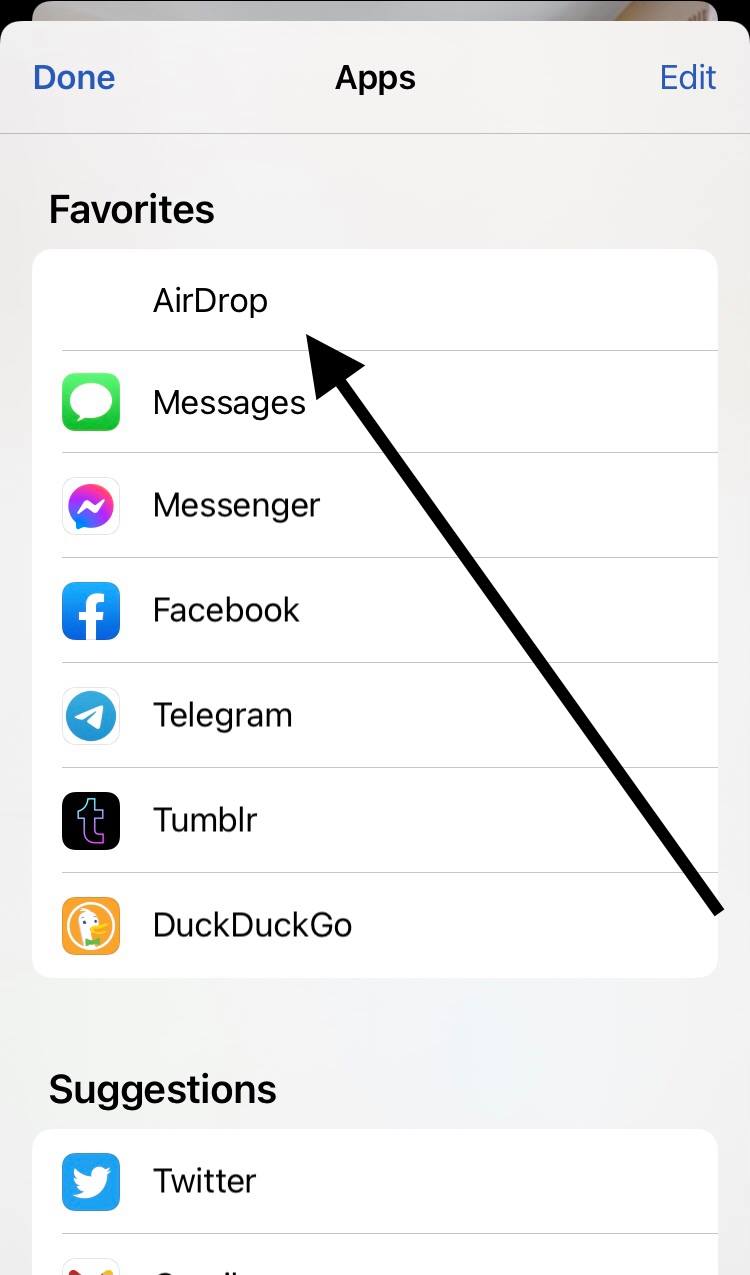
Here's an odd problem that I don't believe that I have ever seen before. An app called VRBO Vacation Rentals is not displaying the icon for AirDrop in the iOS share sheet.

Take a look at these screenshots:


As you can see, the icon for the AirDrop is missing.

Steps to Reproduce:

1. Launch the VRBO Vacation Rentals app
2. Head to the detail page of any listing 
3. Select the share option 
4. From the iOS Share Sheet, notice that the icon for AirDrop is missing

Result: The icon/image for AirDrop is missing from the Share Sheet when it is activated by the VRBO Vacation Rentals app

Expected: The icon/image for AirDrop should always display - the iOS share sheet should never display a blank or missing icon 


Choose the share option from any listing inside of the VRBO Vacation Rentals app.


The image for AirDrop is missing. 


Note that the icon for AirDrop is missing. 


Wednesday, February 24, 2021

Flightradar24 app for iOS: Share sheet - auto-generated subject line disappears the second time the email dialog is activated

 iOS 14.4 on an iPhone 8

Flightradar24 app for iOS (version 8.12.2)

Date: 02/24/21

There is a minor bug with the Flightradar 24 app and the iOS share sheet option. I have only seen this bug a couple of times before (once with an app called Tangi, and another time with an app Zocdoc) with a few other apps.

It's a extremely minor issue - the fact that I have only seen this problem happen a handful of times in all of the different apps I have tried this with is what is interesting to me!

The Flightradar24 has a feature where the user can share something from inside of the app (an airport, a particular flight) using the iOS share sheet. If the user activates the share sheet, and then selects the email option, the subject line is auto-filled.

Like this:

After selecting a random flight from inside the app (an LAX to Sea-Tac flight) the Subject Line inside is auto-generated. 

After this pop-up appears, cancel out of the email and delete the draft. Then select the email option again from the share sheet:

After selecting the Email option a second time, the Subject Line is now blank. Not common to see this with iOS apps!


Steps to Reproduce:

1. Launch the Flightradar24 app

2. Head to anything inside of the app (an airport or a particular flight) that has an option to activate the iOS share sheet

3. Select the Email icon from the share sheet

4. Note that the Subject Line of the email is correctly auto-generated 

5. Close out the email (by selecting "Cancel" and "Delete Draft") and then select the email option again

6. Note that the Subject Line of the email is now incorrectly blank

Result: The Subject Line of the emails created after selecting "email" from the iOS share sheet are blank after the email is closed and opened again 

Expected: This shouldn't be happening - only happens with a handful of iOS apps


Sunday, October 4, 2020

Zocdoc app for iOS: Share sheet - auto-generated subject line disappears the second time the email dialog is activated

 iOS 14.0.1

Zocdoc app for iOS (version 4.61)

Date: 10/04/20


Description:

Here's a minor bug that I have only seen once with another iOS app.

Like almost all apps, Zocdoc has an option to "Share" the app via a menu option. This "Share" option activates the iOS share sheet. If the user selects the email option from the share sheet, they will see the following text in the email message and in the subject line:


You'll notice that the when you first open up the email message, the subject line is auto-generated.


However, if you open the email option a second time...


The subject line is deleted! I've tried this with a great many apps, and I have only noticed this problem happen one other time. 


Steps to Reproduce:

1. Download and launch the Zocdoc app for iOS

2. Select the "Sign up/Log in" option 

3. From the "My account" screen, select the "Share Zocdoc" option 

4. From the iOS share sheet, select the email icon

5. Select "Cancel"

6. Select "Delete Draft"

7. From the iOS share sheet, select the email icon again

8. Note that the Subject Line is now blank

Result: The auto-generated subject line (which displays as "Check out Zocdoc") disappears the second time the user activates the email invite via the iOS share sheet

Expected: The auto-generate subject line should not disappear if the user activates the email invite more than once 


Saturday, August 1, 2020

Facebook Login: New links lead to pages that have a non-working share option

iOS 13.6
Facebook Auth Login pages - Privacy Policy/TOS pages
Date: 08/01/20

Description:

Here's an odd thing that either just started, or I just started noticing. Facebook Authorization Login pages now seem have added links to the bottom.

Take a look at this screenshot:

This is the Log in for Pinterest. As you can see, two links have been added.

A great addition! Twitter authorization always had this.

There's an odd but that appears to happen after being taken to the pages linked to by this link. There's a share option which doesn't work.

Take a look at this screenshot:

Users are taken from the Facebook log in to pages like this. You'll notice the share option in the upper right...

The "Share Link" option does nothing. It should bring up the iOS share sheet, but it does not.

Steps to reproduce:

1. Using an app running iOS 13.6, launch an app that has a Facebook option for account creation 
2. Head to Facebook authorization 
3. Click on the next links at the bottom of the authorization page
4. Click on the "share" option in the upper right 
5. Click on "Share Link" option in the pop-up menu 

Result: There is a "Share Link" option accessible from the new links on the Facebook Messenger log in page - selecting "Share Link" does nothing, it should bring up the iOS share sheet

Expected: A "Share Link" option should work - should activate the iOS share sheet 

Thursday, July 30, 2020

Georgian Bay Boating app for iOS: app freezes after the share sheet is dismissed

iOS 13.6
Georgian Bay Boating app for iOS (version 1.0)
Date: 07/30/20

Description:

There's an odd problem with the Georgian Bay Boating app for iOS. The app freezes if the user tries to dismiss the iOS share sheet.

The user will be frozen on a screen like this:


Steps to Reproduce:

1. Launch the Georgian Bay Boating app for iOS
2. Select any option from the side bar
3. Select the share option in upper right
4. Dismiss the share sheet

Result: the Georgian Bay Boating app for iOS freezes if the user dismisses the share sheet

Expected: the Georgian Bay Boating app for iOS should not freeze if the user dismisses the share sheet

Download and launch the Georgian Bay Boating app...

Select any option from the side bar...

Select the share option in the upper right...

The app freezes if the user dismisses the share sheet.

Friday, May 1, 2020

RealSelf app for iOS: Share sheet - Dark Mode - Facebook Messenger UI

iOS 13.4.1
RealSelf app for iOS (version 6.3.1)
Date: 05/01/20
iOS device set to dark mode

Description:

Minor problem with the current (6.3.1) version of the RealSelf app for iOS.

The RealSelf app has the same problem that numerous other apps have. This problem is with the iOS Share Sheet.

This is how the RealSelf app displays the Facebook Messenger sharing dialog with the iOS device set to the dark mode:

When you compare it to how the RealSelf app displays this in light mode...

You can see that "Done" and "Send" are missing.

This is a common problem with Facebook Messenger and the iOS Share Sheet.

Steps to Reproduce:

1. Set the device to the dark mode
2. From inside the RealSelf app select any doctor, treatment, etc.
3. Select the share option
4. Select the Facebook Messenger option
5. Notice that "Done" and "Send" are not visible
6. Compare this to the light mode

Result: With the iOS device set to the dark mode, the "Done" and "Send " options on the Facebook Messenger UI is not visible when accessed via the share sheet by the RealSelf app

Expected: With the iOS device set to the dark mode, the "Done" and "Send" options on the Facebook Messenger UI should be visible when accessed via the share sheet by the Real Self app

Tuesday, April 28, 2020

Groupon app for iOS: Share Sheet options not visible with device set to light mode

iOS 13.4.1
Groupon app for iOS (version 20.6)
Date: 04/28/20
iOS device set to: Light Mode
Description:

There are problems with the current (version 20.6) version of the iOS app when the iOS device is set to the light mode.

A large number of menu options in the share sheet are not visible.

Here's an example of the auto-generated email:

With the device set to light mode, the "Cancel" option is invisible...

Here's the auto-generated text message:

The "Cancel" option is not visible.

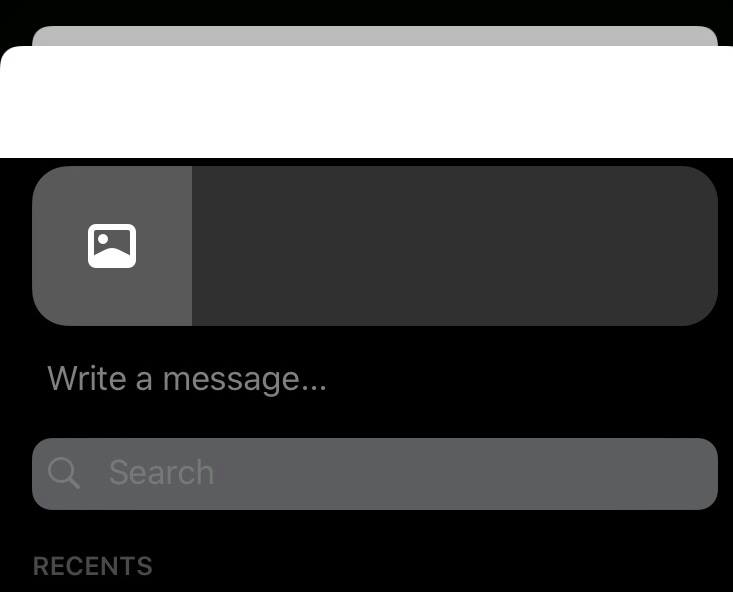
Here's the Facebook Messenger UI:

The "Done" option isn't visible in light mode.

Here's the More Apps area of the share sheet:


Can't see either of the two options at the top.

Steps to Reproduce:

1. Set the iOS device (13.4.1) to light mode
2. Launch the Groupon app
3. Select any deal
4. Share it/activate the share sheet
5. Choose either the text message, email, FB messenger or more apps options

Result: With the iOS device set to the light mode, the Groupon iOS app incorrectly displays the share sheet for the text message, email, FB Messenger and More apps options - menu options are white-on-white
Expected: This shouldn't be happening with the Groupon app when the iOS device is set to the light mode

Tuesday, April 21, 2020

Blinkist app for iOS: Share sheet - Facebook Messenger UI is not displayed properly

iOS 13.4.1
Blinkist app for iOS (version 6.2.0)
Date: 04/21/20

Description:

One of the most common problems I have been being seeing lately also happens with the Blinkist app.

The Blinkist app does not display the Facebook Messenger UI correctly, after it is accessed via the iOS share sheet. This happens with the iOS device set to either light or dark modes.

Take a look at how Blinkist displays this UI:

This is how the Blinkist app displays the Facebook Messenger UI when the iOS device is set to the light mode. You'll notice the black bar at the top. Shouldn't be there.

This is how it is displayed when the device is set to dark mode. When set to the dark mode there is a large white bar...

Steps to Reproduce:

1. With the iOS device set to either light or dark modes, download and launch the Blinkist app for iOS
2. After entering into the app, select the "Free Daily Pick"
3. Select the "..." option in the upper right hand corner of the screen
4. From the "More Options" screen select "Share"
5. From the share sheet, select "Messenger"

Result: The Blinkist app does not display the Facebook Messenger sharing UI correctly, when it is activated via the share sheet by the app. With the iOS device set to either the light or dark modes, there is an incorrectly placed bar on top of the UI

Expected: Shouldn't be doing this. Blinkist should display the Facebook Messenger UI correctly

Select this option...

Select the share option...

Select Messenger from the share sheet.


Monday, April 20, 2020

Joom app for iOS: Share sheet and Facebook Messenger - FB Messenger UI not displaying correctly with the device set to dark mode

iOS 13.4.1
Joom app for iOS (version 2.33.2)
Date: 04/20/20

Description:

Yet another app that has a problem with how it displays the Facebook Messenger sharing UI in the share sheet.

This time the app is called Joom. The Joom app only has this problem when the iOS device is set to dark mode. While Joom doesn't support dark mode, it shouldn't display the FB Messenger like this:


Steps to Reproduce:

1. Set the iOS device to dark mode
2. Download and launch the Joom app
3. Select any product listed in the Joom app
4. Share any product/activate the share sheet
5. Select the Facebook Messenger option
6. Note Facebook Messenger UI has a discolored bar at the top

Result: With the iOS device set to the dark mode, the Joom app displays the Facebook Messenger pop-up UI incorrectly

Expected: The Joom app for iOS should display the Facebook Messenger UI accessible via the share sheet correctly - there shouldn't be the discolored bar at the top of the pop-up

Select any product listed in the Joom app. Then select this option in the upper right...

Select the "Share post" option...

If the device is set to the dark mode, the Joom app doesn't display the Facebook Messenger UI correctly. Check out the white bar.

Thursday, April 16, 2020

Slickdeals app for iOS: Share sheet - Facebook Messenger UI not displaying correctly

iOS 13.4.1
Slickdeals app for iOS (version 5.16.0)
Date: 04/16/20

Description:

A common problem with iOS 13 and the iOS share sheet also happens with the Slickdeals app for iOS. As has been documented with numerous apps, there are certain apps that do no display the Facebook Messenger UI correctly.

Some apps, such as the Slickdeals app, display the Facebook Messenger pop-up UI incorrectly with the iOS device set to either the light or dark modes. Bizarre that this is repeatedly happening. Even more bizarre that Apple doesn't make this a standard test case for app store release compliance.

But I digress!

This is easier to show than to describe, so please take a look at the following screenshots...

This is with the iOS device set to dark mode. After opening up the iOS share sheet's Facebook Messenger option, you will see the unsightly white bar at the top....

This is with the iOS device set to light mode. This time there's a black bar at the top of the screen. In both instances, you can't see "Send" or "Done"

Steps to Reproduce:

1. With the iOS device set to either light or dark mode, download the Slickdeals app for iOS (version 5.16.0)
2. Select any product featured in the app
3. Select the share option for any product
4. From the share sheet, select the Facebook Messenger option
5. Note the misplaced bar at the top of the FB Messenger UI

Result: The Slickdeals app for iOS displays the Facebook Messenger UI incorrectly when accessed via the iOS share sheet

Expected: The Slickdeals app for iOS should be displaying the Facebook Messenger UI correctly when accessed via the iOS share sheet

This isn't the first bug with Slickdeals that I have documented. But this was the first problem I have seen with the Slickdeals app and the iOS share sheet!


Tuesday, April 14, 2020

Super C app for iOS: Share Sheet - Facebook Messenger UI not displaying correctly

iOS 13.4.1
Super C app for iOS (version 2.0.4)
Date: 04/14/20

Description:

Here's yet another one of my obsessive compulsive ramblings example of a problem that numerous apps have with the iOS share sheet and the Facebook Messenger UI.

There's an app out of the beautiful Quebec region of Canada called "Super C." This app is a coupon app.

This app has the function of creating custom lists, which can then be shared using the iOS share sheet.

However, the same old problem appears with this app....

Take a look at these screenshots:

This is with the iOS set to dark mode. As you can see, the Facebook Messenger UI is not displaying properly.

This is with the iOS set to light mode. The Facebook Messenger UI is not displaying properly, here, either.

Steps to Reproduce:

1. Download the Super C app for iOS and create an account
2. Add items to your grocery list
3. Select "List" from the bottom UI
4. Select the share option
5. From the share sheet, select Facebook Messenger

Result: The Facebook Messenger UI is not display properly in the share sheet by the Super C app - there is a discolored bar at the top

Expected: The Facebook Messenger UI should always be displayed correctly

Saturday, April 11, 2020

TaskRabbit app for iOS: Share sheet - app displays Facebook Messenger UI incorrectly

iOS 13.4.1
TaskRabbit app for iOS (version 6.17.1)
Date: 04/11/20

Description:

Minor problem with the TaskRabbit app for iOS. This happens if the device is set to either the light or the dark mode.

The TaskRabbit app doesn't display the Facebook Messenger option correctly in the share sheet.

It looks like this in light mode:
And like this in dark mode:

As you can see, several options "Done" and "Send" are not visible.


Steps to Reproduce:

1. With the device set to either light or dark mode, download the TaskRabbit app for iOS
2. Create an account
3. Select "Profile"
4. Select "Help your friends, Get $10"
5. Select "Tap to Share"
6. Select the Facebook Messenger option

Result: The TaskRabbit app doesn't display the Facebook Messenger UI in the share sheet correctly, in either the light or dark modes

Expected: The TaskRabbit app should display the Facebook Messenger UI in the share sheet correctly

Thursday, April 9, 2020

DecorMatters app for iOS: Share sheet - Facebook Messenger UI displaying incorrectly

iOS 13.4
DecorMatters app for iOS (version 6.6.0)
Date: 04/09/20

Description:

The DecorMatters app for iOS has the same problem which is currently very common with multiple iOS app. This is an issue with how the DecorMatters app works with the iOS share sheet and the Facebook Messenger extension of the share sheet.

This problem happens if the iOS device is set to either the light or dark modes.

This is much easier to show than to describe, so please take a look at the following screenshots:

This is with the iOS device set to light mode. As you can see, the DecorMatters app does not display the Facebook Messenger extension correctly. There's a large black bar at the top of the UI, hiding the menu options...

This is with the iOS device set to dark mode. Now there's a large white bar, covering up menu options in the Facebook Messenger UI.

Steps to Reproduce:

1. Download the DecorMatters app for iOS
2. Select any product in the app
3. Select the share option
4. Select the Facebook Messenger sharing option from the share sheet

Result: The DecorMatters app has a problem with the iOS share sheet - the DecorMatters app does not present the Facebook Messenger sharing UI correctly in either the dark or light modes of the device

Expected: The DecorMatters app should work correctly with the iOS share sheet and display the Facebook Messenger option correctly

Wednesday, April 8, 2020

Phillips app for iOS: Share sheet - Facebook Messenger UI is not displaying correctly

iOS 13.4
Phillips app for iOS (version 1.3.26)
Date: 04/08/20

Description:

With the iOS device set to the light mode, there is a problem with the Phillips app and the iOS share sheet. The Facebook Messenger sharing UI doesn't display properly.

The "Done" and "Send" options aren't visible. It looks like this:

The red arrows are pointing to the "Done" and "Send" options which are not visible when the device is set to the light mode.

Steps to Reproduce:

1. With the iOS device set to the light mode, launch the Phillips app for iOS
2. From inside the Phillips app, select any upcoming auction
3. From any auction, select any individual item that's up for auction
4. From any item, select the share option
5. From the share sheet, select the Facebook Messenger option
6. Note that the Facebook Messenger sharing UI is discolored, with menu options invisible

Result: With the iOS device set to the light mode, the Phillips app, doesn't display the Facebook Messenger sharing option in the share sheet correctly

Expected: With the iOS device set to the light mode, the Facebook Messenger sharing UI should display properly


Tuesday, April 7, 2020

Overstock app for iOS: Camera Roll access prompt appears after selecting the share option from any product

iOS 13.4
Overstock app for iOS (version 2020.3.2)
Date: 04/07/20

Description:

Here's an odd one. This is the first time I have ever seen this with an iOS app.

With the current version (2020.3.2) of the Overstock app, a camera roll permission dialog message appears when the user selects the share sheet option from any product.

This message appears after selecting the share option for a product. Why? There doesn't seem to be any reason for asking for this message after selecting the share option, as it has nothing to do with accessing the share sheet....

I don't think that this message should be appearing at this point.

Steps to Reproduce:

1. Download the Overstock for iOS for the first time
2. Select any product listed in the app
3. Select the share option from any product

Result: Camera roll access prompt appears after selecting the share option from any product listed in the Overstock app for iOS

Expected: This prompt shouldn't be appearing at this point

Download the app for the first time. Select any product. Select the share option....

Why is this being prompted now?

Overstock app for iOS: Share Sheet: Facebook Messenger sharing UI is discolored, can't see menu options

iOS 13.4
Overstock app for iOS (version 2020.3.2)
Date: 04/07/20

Description: 

Problem with the Overstock app, the iOS share sheet, and Facebook Messenger sharing.

With the iOS device set to either the light or dark modes, the Facebook Messenger sharing UI is distorted.

Take a look at these screenshots:

This is with the device set to the light mode....

This is with the device set to the dark mode.


Steps to Reproduce:

1. (With the device set to either light or dark mode) Download and launch the Overstock app for iOS
2. Select any product listed
3. Select the share option
4. From the share sheet, select the Facebook Messenger option

Result: The Overstock app for iOS displays the Facebook Messenger sharing UI menu incorrectly - the "Done" and "Send" options aren't visible

Expected: The Facebook Messenger sharing UI should be displayed properly by the Overstock app for iOS